

Teach
See where students stop watching, and whether your changes help
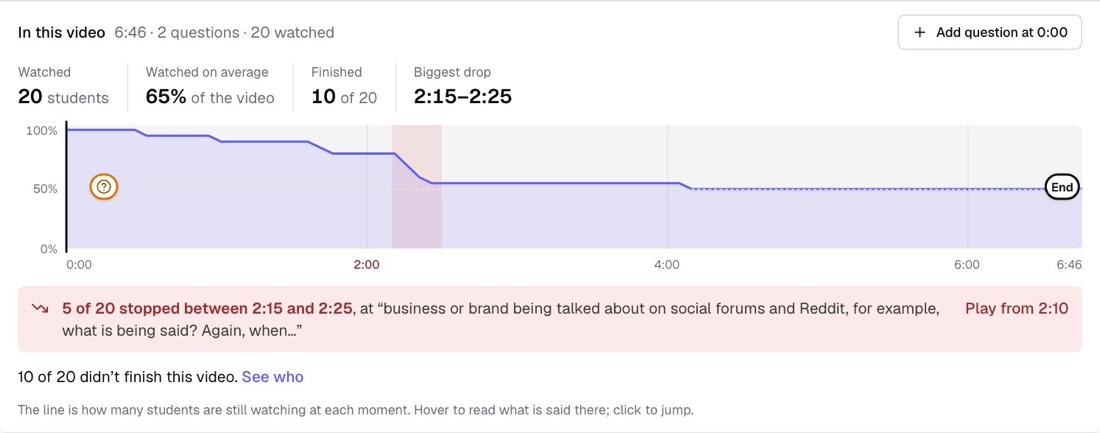
Every lesson video now shows how many students are still watching at each moment, where most of them stop and what was being said, and after you change a question in the video, whether fewer of them stop. Insights shows the same for a whole course.
What’s changed
Before, you could see which lesson a student was on and how long they had watched. Now you can see the moment inside a video where students leave, the words being said then, how far each student got, and whether an edit made a difference.
Who gets itEvery school, on every plan
How it works
- Open a lesson with a video. Under the player, a line shows how many students are still watching at each moment, with the biggest drop marked and quoted from the transcript.
- Hover the timeline to read what is being said there, and click to jump to it. See who lists the students who stopped there, earliest first.
- Change a question in the video, then switch the line from All time to Before and after to see whether fewer students stop.
- Open Insights, under Students, for a whole course: how many reach each lesson, how much of each video they watch and where the biggest loss is.
Good to know
- It works for any video: one you uploaded, a recording of you talking to camera, or a video Knola made. The words come from the transcript or captions.
- The line and averages appear once 10 students have watched a video, and a before-and-after result once 10 have started on each side of a change.
- Watching has been recorded since 10 October 2026.
- Nothing changes for your students.