

How to schedule a launch and run a waitlist
Collect names before you sell, then have your sales page switch itself from a waitlist to a buy button at the exact time you set.

 By Knola5 min read
A launch is two pages doing different jobs at different times: before the date you want names, after it you want money. Rather than rebuilding the page at midnight, you set a time and Knola flips the button for you.
Start from the waitlist template
Create a funnel and choose the Cohort waitlist template, described as "Sales → Waitlist → Confirmation. Pre-launch interest capture for cohort programs." It arrives with three steps already wired: a sales page, a page that captures the email, and a thank-you page.
Its sales page ships with Join the waitlist as the button, pointing at the capture step. With no launch time set, that is exactly what the funnel does: it collects names, and every one lands in your audience.
Add the checkout the launch will point at
The waitlist template has no checkout step, because before launch there is nothing to buy. Add one before you schedule anything: on the canvas, click + Add step, choose Checkout, and wire it to your offer.
Set the time and the button
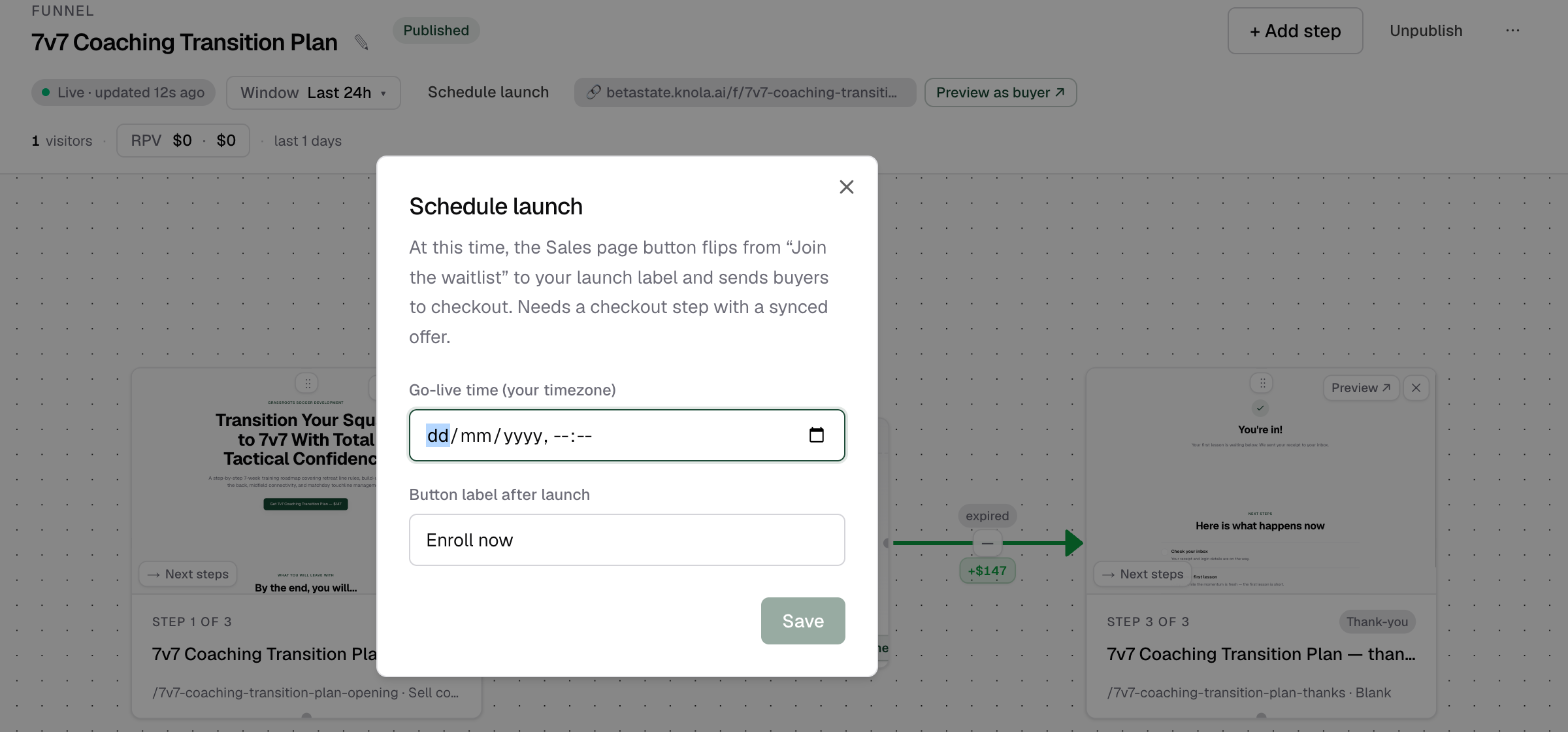
In the canvas header, click Schedule launch. The dialog explains what it will do: "At this time, the Sales page button flips from “Join the waitlist” to your launch label and sends buyers to checkout. Needs a checkout step with a synced offer."
- Go-live time (your timezone): the date and time, in the timezone of the computer you are on.
- Button label after launch: what the button should say once you are open, up to 40 characters. Leave it and buyers see Enroll now.
Click Save. The header button now reads Launches with your date on it, so the whole team can see the plan at a glance.
What changes at go-live
One thing changes, and it changes on its own: the sales page button stops sending people to the waitlist and starts sending them to your checkout, wearing the label you chose. The header button turns into ● Live.
Nothing else moves. The page keeps its writing, its images and its other buttons, so anything you want to say differently after launch (an urgency line, a price) needs to already be on the page, or you edit and republish it on the day.
Move it, or call it off
Open the same dialog again to change the time or the label. Clear removes the launch entirely and the page goes back to waitlist behaviour, which is what you want if a cohort slips.
Scheduling is separate from publishing. A launch time on a draft funnel does nothing publicly until you publish, and unpublishing does not clear a launch time.
How do I run a waitlist before my course is ready?
Build a funnel from the Cohort waitlist template and publish it with no launch time set. The sales page button collects emails into your audience. When you know your date, add a checkout step and schedule the launch.
What time zone is the launch time in?
The time zone of the computer you set it on. Knola stores the exact moment, so a buyer anywhere in the world sees the button flip at that same instant.
Can I schedule a launch for a date that has passed?
Yes, and it counts as live immediately, which is a quick way to open a waitlist funnel early. To go back to collecting names, open the dialog and click Clear.