

How to export everything: your content is yours
Download any course as PDF, self-contained HTML, or a Markdown + JSON archive, and export your full audience as CSV. No lock-in, ever.

 By Knola3 min read
Knola's position on lock-in is printed at the top of the page itself: "Everything you make on Knola is yours. Take a copy any time." This guide shows every way to take that copy.
Open Settings → Export
Open Settings at the foot of the sidebar and choose Export under Data. The Courses section lists every course with its lesson count. Pick a format at the top, then click the download button beside a course.
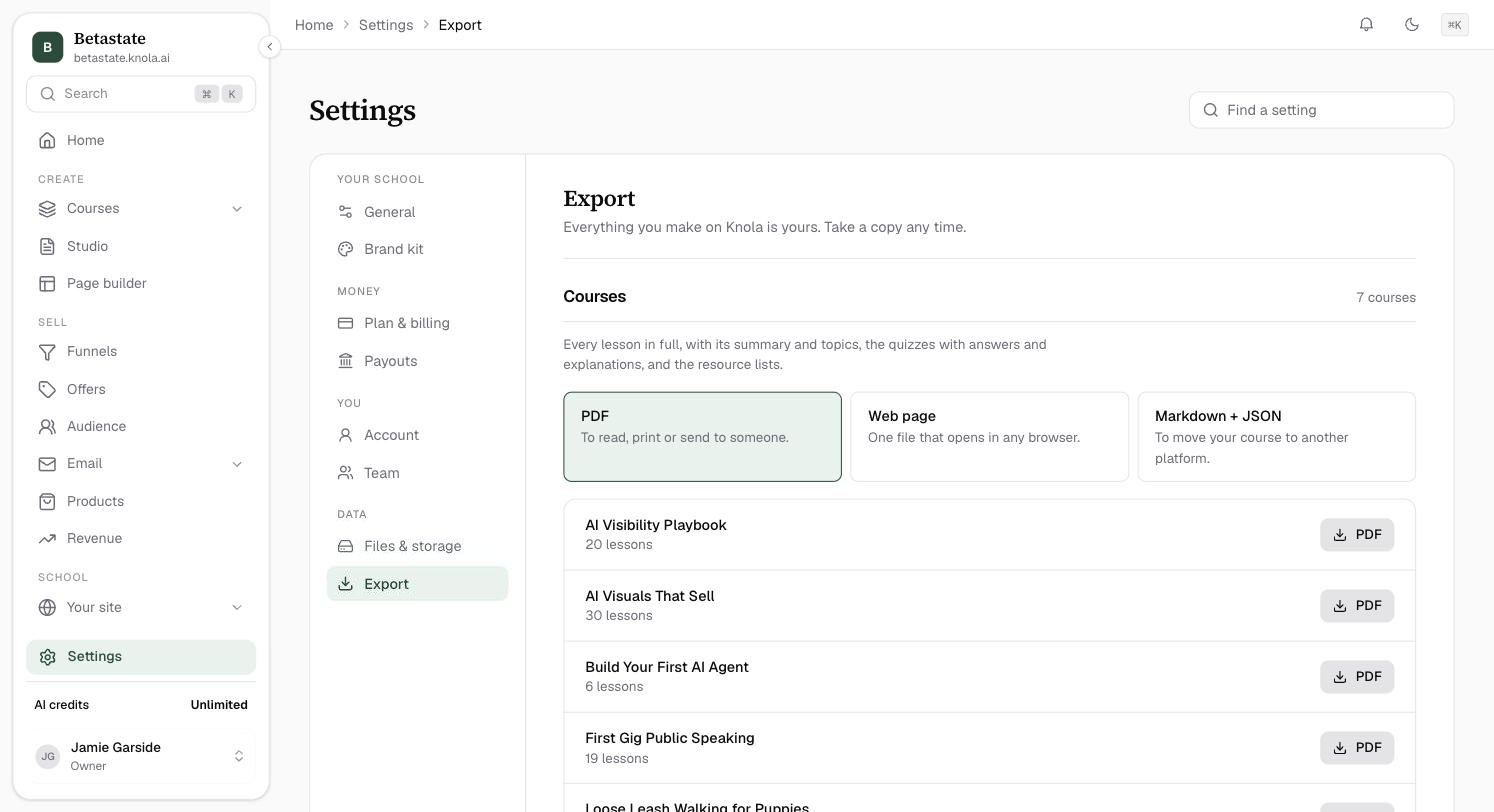
Pick a format and download
Every format includes the lot. As the page says: "Every lesson in full, with its summary and topics, the quizzes with answers and explanations, and the resource lists." Choose one of three:
- PDF: to read, print or send to someone. A print-ready document of the whole course.
- Web page: one file that opens in any browser, offline, with a linked table of contents.
- Markdown + JSON: to move your course to another platform. A ZIP with a markdown file per lesson plus a
course.jsondescribing the full structure. The right choice for re-importing, keeping a history of changes, or moving to another system.
Export your audience as CSV
Under Everything else, Contacts and customers is every lead and buyer your funnels have captured. Click Export from Audience: the Export CSV button there downloads the full list, and with filters applied it exports exactly what you've narrowed to. More on the list itself in your audience.
Or export straight from the course
The same three exports live where you're already working: on any course's admin page, open the More course actions menu (the ⋯ button in the header) and choose Download as PDF, Download as HTML, or Download as Markdown + JSON.
Can I export my course from Knola if I leave?
Yes, any time and on any plan. Settings → Export exports each course as PDF, self-contained HTML, or a ZIP of markdown files plus course.json, and your audience exports as CSV.
What exactly is inside a course export?
Every lesson's full text, summary and topics, quizzes with correct answers and explanations, and resource lists. The Markdown + JSON format also includes a course.json with the complete course structure.
Can I download my uploaded videos?
A self-serve media archive is on the way. Until then, support will prepare an archive of your uploaded videos and files on request. Your media is never locked in.