

How to add your team, and what each role can do
Invite an instructor or an admin to help run your school, set how many AI credits each can use, and change or remove them later.

 By Knola3 min read
Teammates are part of Knola Pro. Each person signs in with their own account and sees only what their role allows.
Pick the right role
- Instructor: courses, slides, videos and students. No money, marketing, website or settings.
- Admin: runs the school with you: courses, selling, marketing, website, settings and the team. Not your plan, payments or payouts.
- Owner: everything, including your plan, payments and payouts. That is you.
Click What can each role do? under the invite form for the full list.
Invite a teammate
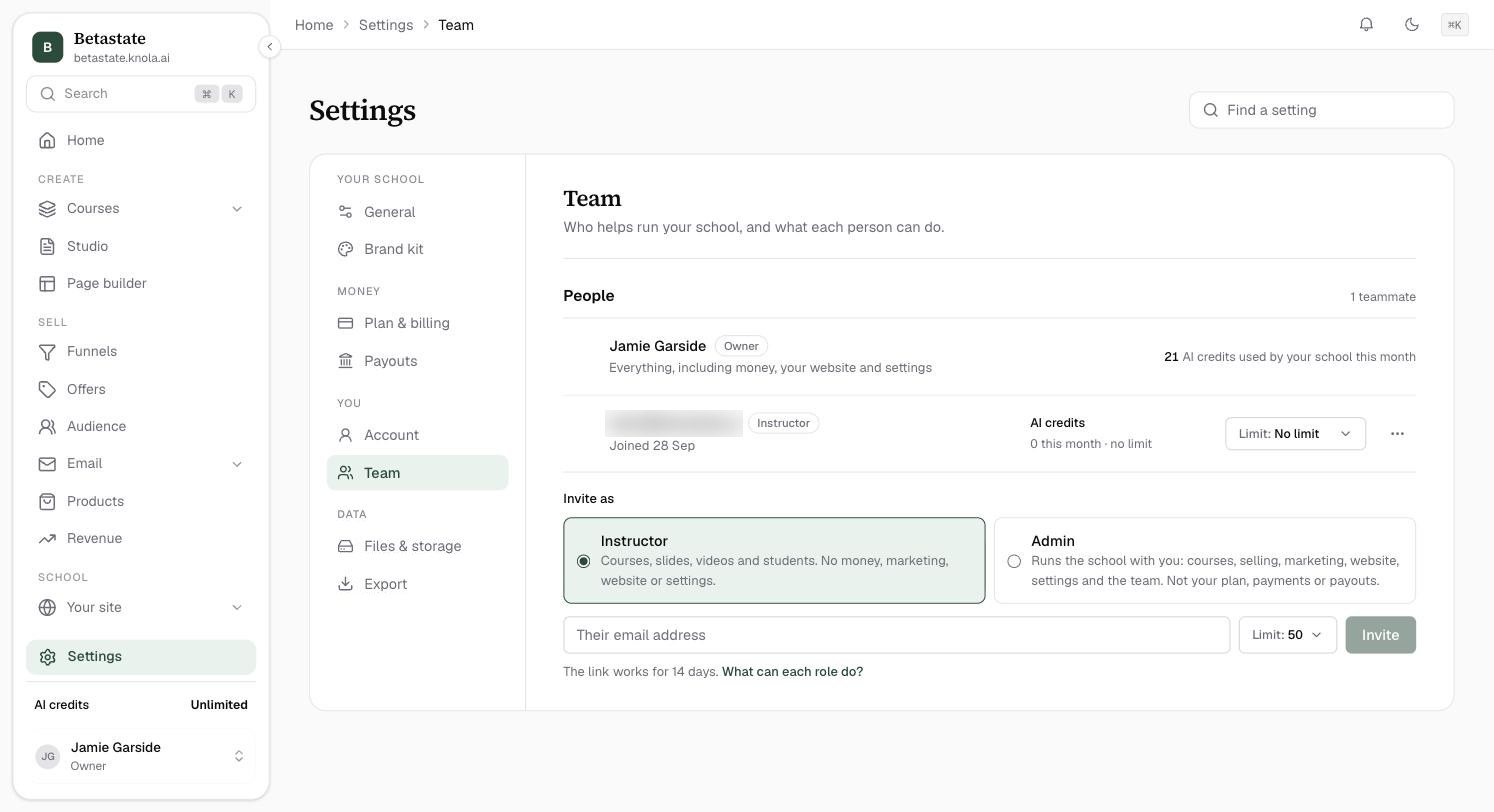
Open Settings, then Team. Under Invite as, choose Instructor or Admin, type their email address, set a limit on the AI credits they can use each month, and click Invite.
They get an email with a link that works for 14 days. If the email does not arrive, use Copy link and send it yourself.
Change a role, a limit, or remove someone
Each teammate's row shows the AI credits they used this month and their Limit. Change the limit any time. The ⋯ menu lets you Make admin or Make instructor, or Remove from team. Pending invitations can be sent again or cancelled from the same menu.
Do teammates use my AI credits?
Yes, they use the school's credits, up to the monthly limit you set for each person. Set No limit if you trust them with the lot.
Can an admin see my payouts?
No. Plan & billing and Payouts are for the owner only.