

Keep your emails out of spam
See what Knola does to get your broadcasts and flows into the inbox, and the few habits on your side that keep them landing there.

 By Knola10 min read
Gmail, Outlook and Yahoo decide where every email lands, and they decide mostly on two things: whether the email can prove who sent it, and whether the people getting it wanted it. Knola handles the first part for you and puts guard rails around the second. This page explains what happens on its own, what you will see when it does, and the habits that are yours.
Your own domain, signed and re-checked every day
Your broadcasts and flows send from a subdomain you own, like mail.yourdomain.com, so the reputation you build is yours alone and your website and everyday inbox stay safe if a send ever lands badly. Setting it up is covered in Set up your email domain.
The records you add there are what inboxes look for. Three CNAME records let Knola sign every email so inboxes can see it really came from your domain (that signature is called DKIM). An MX and a TXT record on bounce. your domain give returned mail somewhere to go and list who may send for you (SPF). A TXT record at _dmarc tells inboxes what to do with mail that fails those checks (DMARC). Gmail, Yahoo and Outlook expect all three from anyone sending in bulk, which is why your domain only shows Verified once its records are in place.
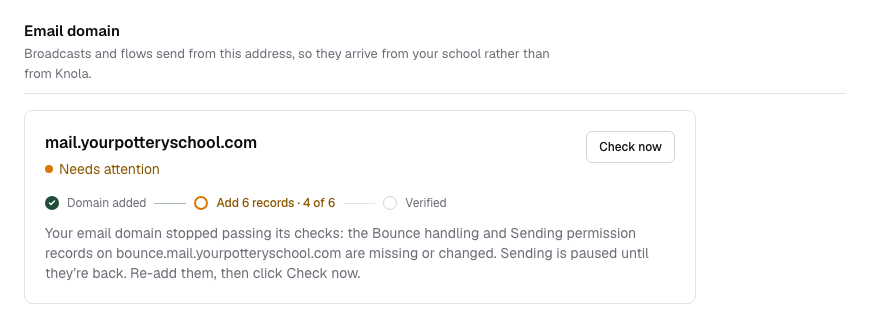
Records sometimes vanish later, usually when someone tidies up DNS or moves the domain to a new provider. So Knola checks every verified domain again about once a day. If a record has gone, the domain shows Needs attention under Email domain in Settings, with a line naming the exact record that is missing. Until it is back, new broadcasts are refused and flow emails wait. Nothing is lost.
A new domain starts slowly
Inboxes trust a domain by its history, and a brand new one has none. So for its first weeks a new domain has a daily ceiling on broadcast emails. It starts at 200 a day and rises each day you send, until the domain has a couple of weeks of sending behind it and the ceiling goes.
When a broadcast is bigger than the day allows, the composer says so under the send button: "Your email domain is new, so it sends up to 200 a day for now. This one goes out over about 3 days." Nothing extra is needed from you. The broadcast keeps going, a day at a time, and its page says when the rest carry on.
- Flow emails are never held back by this, though they count toward the day.
- If a week of sending brings a lot of bounces or spam reports, the ceiling drops back to the start until things recover.
Your first broadcasts are looked over by a person
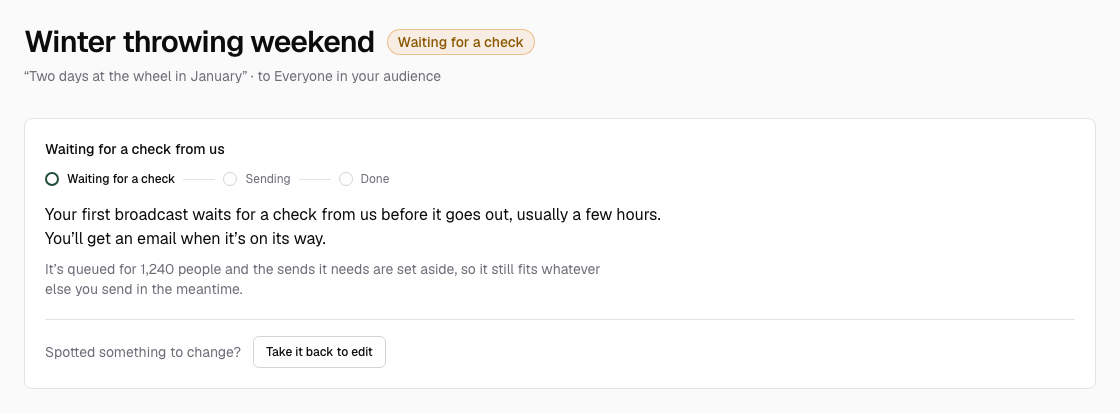
Before your first few broadcasts go out, someone at Knola takes a quick look at who they are going to and what they say. It catches the worst case (a bought list, a mistake that would get your sending paused) before it reaches anyone. Under the send button, your very first one says "Your first broadcast waits for a check from us before it goes out, usually a few hours." The next two say "Your first 3 broadcasts each wait for a check from us, usually a few hours. After that they go straight out."
Once you send it, the broadcast shows Waiting for a check and you get an email headed "Your broadcast is in a quick check". The sends it needs are set aside so it still fits whatever else you send meanwhile. Spotted a typo? Press Take it back to edit on its page, then Yes, take it back. Sending it again starts the check over.
What happens next:
- Approved: it goes out and you get "Your broadcast is on its way".
- Needs a change: nothing is sent, the sends go back into your allowance, and you get "Your broadcast needs a change before it goes out" with the reason written by the person who looked. It is a draft again: make the change and send it, and it is looked at again. Reply to that email if you want to talk it through.
- Small ones go by themselves: if one of your first broadcasts goes to 200 people or fewer and nobody has got to it after two hours, it goes out on its own. This does not apply if one of your broadcasts has needed a change before.
After three broadcasts go out cleanly, the rest go straight out. A broadcast waits for a check again if your last one had a lot of bounces or spam reports, or if it goes to far more people than you have ever sent to (more than three times your biggest send, and at least 500 more people). Those always wait for a person, whatever their size.
Nobody gets too many emails
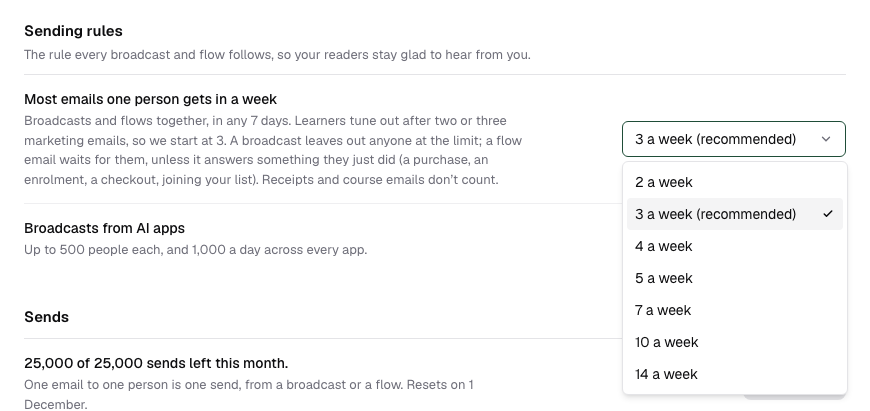
Too many emails is the quickest way to get unsubscribes and spam reports. So every school has a weekly limit on marketing email per person, broadcasts and flows counted together over any 7 days. It is in Settings under Sending rules as Most emails one person gets in a week, set to 3 a week (recommended) to start. You can raise it as far as 14, but you cannot switch it off.
- A broadcast leaves out anyone already at the limit. Its page says how many, for example "18 skipped: already had 3 emails this week".
- A flow email waits until the person is under the limit again, unless it answers something they just did, like a purchase, an enrolment, a checkout or joining your list. Those go straight away.
- Receipts, access links and course emails never count and are never held.
Every email has an unsubscribe link
Knola adds a footer to every broadcast and flow email, and you cannot remove it: a line saying why the person is getting it, an Unsubscribe link, your postal address, and where replies go. Inboxes that show their own unsubscribe button beside your name, as Gmail does, unsubscribe people the same way. Making it easy to leave is what stops people pressing "Report spam" instead.
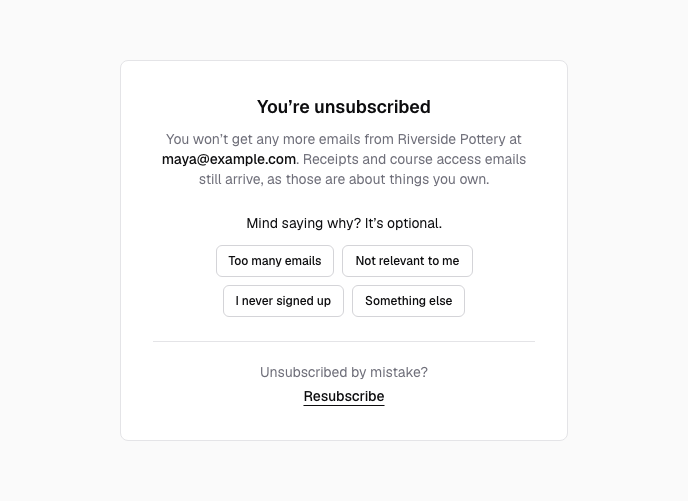
The link opens a page in your school's name asking "Unsubscribe from" your school, with an Unsubscribe button. Opening the page changes nothing on its own, so a link scanner in someone's work inbox can't unsubscribe them by accident. After they press it, they can tell you why with one tap (Too many emails, Not relevant to me, I never signed up or Something else), and Resubscribe if it was a mistake. They still get receipts and access emails for things they bought.
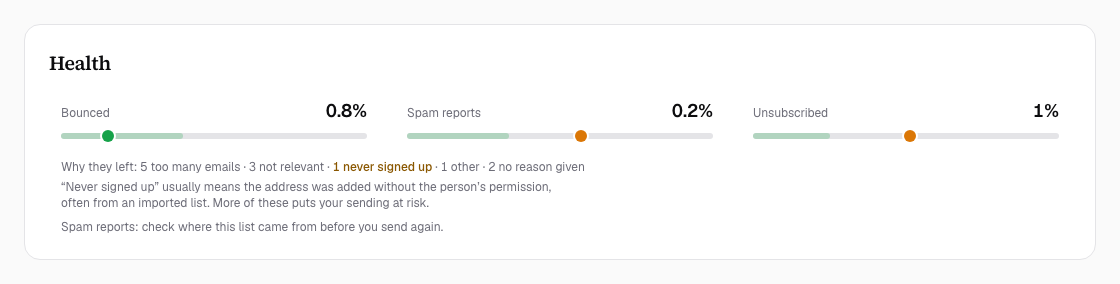
Those reasons show on each broadcast's page under Health. Watch for "never signed up": it usually means addresses were added without permission, often from an imported list.
You can unsubscribe someone yourself too, for example when they ask by reply. In Audience, open their row and click Unsubscribe, then Yes, unsubscribe.
Dead addresses and spam reports stop by themselves
You never need to clean bounces off your list by hand. Knola stops emailing an address the moment it learns one of these:
- Bounced: the address does not exist or can't receive mail.
- Complained: the person marked one of your emails as spam.
- A mailbox that was full for three sends in a row is stopped too. Their row in Audience says "Their mailbox was full on the last few emails, so we stopped." with an Email them again link, for when you know they have made room.
A bounce or a spam report stops that address for every school on Knola, not just yours, and nothing brings it back: not a new sign-up, and not an import. That protects your sending from addresses other schools already found to be dead.
After each broadcast, the Health panel on its page shows Bounced, Spam reports and Unsubscribed. If anyone reported it as spam, you will see "Spam reports: check where this list came from before you send again." Take that seriously: a few reports are enough for your sending to be paused.
Only people who said yes get marketing email
Broadcasts and flows only ever go to people on your list. Who is on it depends on how they reached you:
- Sign-ups: forms, funnels, lead blocks, waitlists and free downloads say under the button that signing up adds the person to your emails, so signing up is their yes.
- Buyers: buying is not a yes to marketing. A buyer shows Not on your list in Audience until they tap Yes, send me news on the thank-you page or in their access email. They always get receipts and access emails. You can change this in Settings under Legal, How buyers join your email list, but Automatically is only right if you sell mainly in the US, as it is not consent in the UK or EU.
- Imports: you confirm where the people came from and that you have their permission before anything is added. See Import your email list.
Your part: six habits that keep you in the inbox
- Send yourself a test first. In the composer, Preview shows the email on Desktop and Phone, and Email me a test sends it to you so you can check it in a real inbox. More on this in Send a broadcast.
- Only import people who agreed to hear from you. Never a bought, rented or borrowed list, or addresses copied from websites. People who never asked for your email report it as spam.
- Start a new or old list with your most engaged. After an import, send first to the people who opened your emails most recently, then widen it over a few weeks. A big send to everyone at once from a new domain can get your sending paused.
- Send regularly. A list you email every week or two remembers who you are. One you last wrote to a year ago has forgotten, and that is when spam reports come.
- Make sure replies reach you. Replies go to in Settings has to be an inbox you read. Replies are one of the clearest signs to inboxes that your email is wanted.
- Read the Health panel after every send. A jump in bounces, spam reports or "never signed up" means look at where that list came from before sending to it again.
Why are my emails going to spam?
Usually because the domain is new, a record has gone missing, or some of the people getting them never asked to. Check your domain shows Verified in Settings under Email domain, start new or imported lists with your most engaged readers, and look at the Health panel on your last broadcast for bounces and spam reports.
Why is my broadcast waiting for a check?
Your first 3 broadcasts are looked over by a person at Knola before they go out, usually within a few hours, and you get an email when it is on its way. Later ones wait again only if your last broadcast had a lot of bounces or spam reports, or if it goes to far more people than you have sent to before.
How many emails can I send to one person each week?
Three by default, broadcasts and flows together in any 7 days. You can raise it to as many as 14 in Settings under Sending rules. Receipts and course emails never count.
Do I need to set up SPF, DKIM and DMARC myself?
You add the records once when you set up your email domain, and Knola does the rest: it signs every email and checks the records again about once a day. If one goes missing, Settings tells you which one to re-add.
What happens when someone marks my email as spam?
Knola stops emailing that address straight away, for every school on Knola, and it shows as Complained in your Audience. The report also counts on the broadcast's Health panel, and a broadcast after one with a lot of spam reports waits for a check before it goes out.