
How to build an email flow that sends by itself
Set up an automated email sequence that starts when someone joins your list, buys, leaves a checkout or finishes a course, then sends on your schedule.

 By Knola9 min read
A flow is a set of emails that sends itself. Something starts it (someone joins your list from a sign-up page, buys, leaves a checkout, finishes a course or stops clicking your emails), and each person then moves through your emails and waits on their own clock. You write it once and it keeps working.
Flows send from your own email domain, so set up your email domain and sender details first. You can build flows before it’s ready; their emails simply wait and go out once it is.
Open Flows
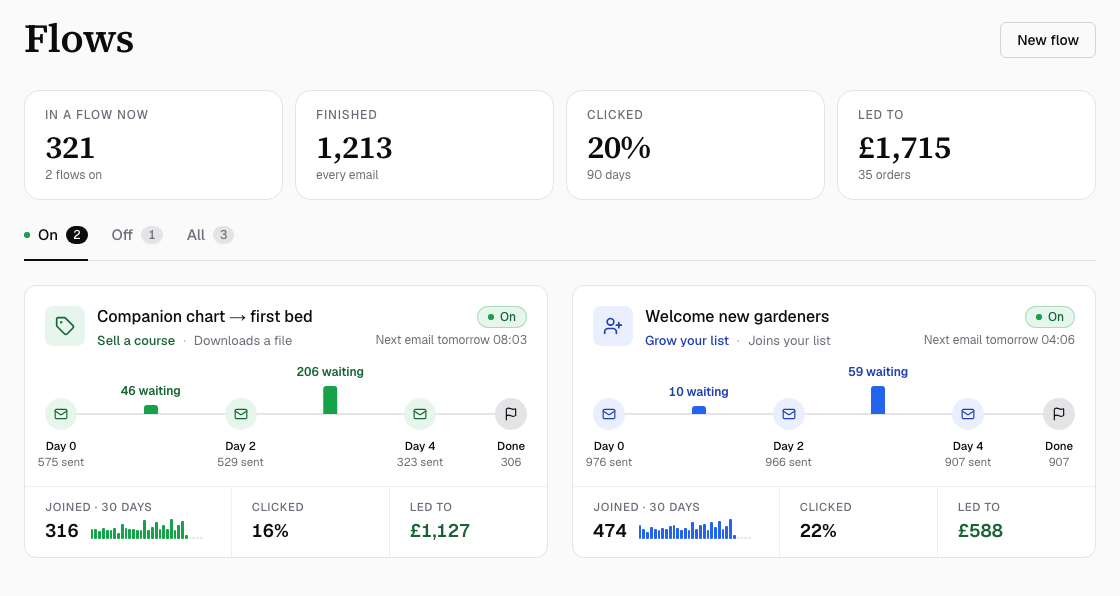
In the sidebar, open Email, then Flows. Your flows sit under three tabs: On, Off and All, each with a count. A flow that’s on shows as a card with its journey: one stop per email and how many people are waiting between them. A flow that’s off is a smaller grey card with a Switch on button.
Each flow wears a pill: On while it’s sending, Paused if it ran before and you stopped it, Off if it has never run. If your email domain or sender details aren’t finished, a notice at the top says what’s left, with a button that takes you there.
Start from a ready-made flow
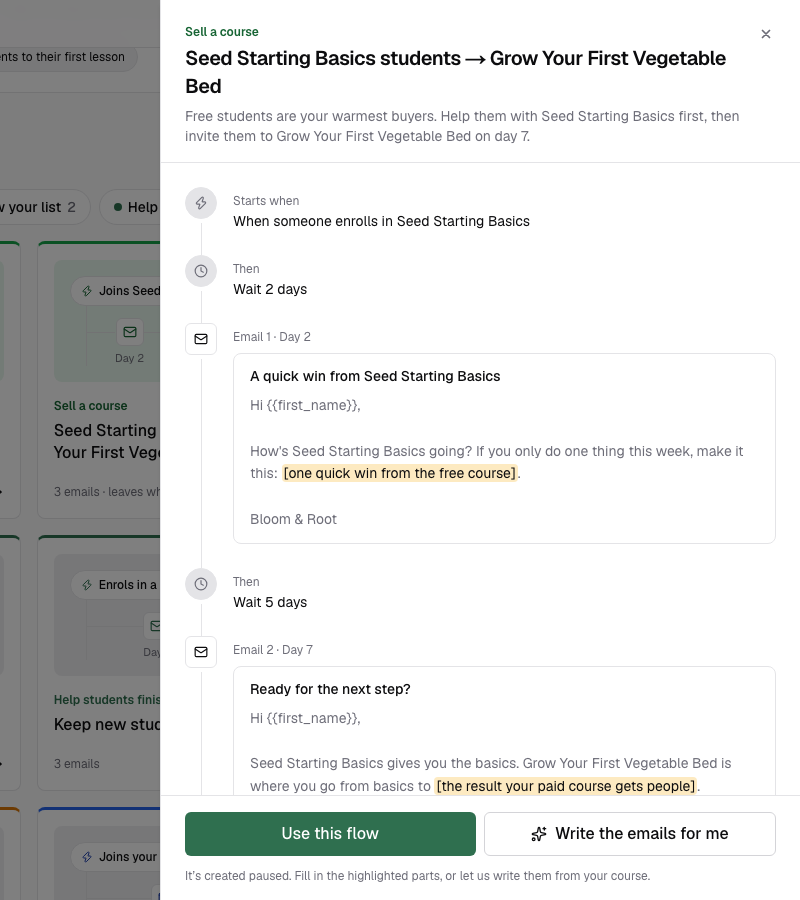
The quickest start is a finished flow written around your own courses and downloads. Scroll to Ready-made flows (it’s called All ideas before you have any flows) and filter by goal: Sell a course, Grow your list, Help students finish or Win people back. Click Open on a card to see every email and wait in order.
If the idea mentions a course or a download, pick which one at the top of the panel. Then choose Use this flow to take the emails as written, or Write the emails for me to have them written from your course in your voice (this takes about twenty seconds).
Or describe the flow in a sentence
Above the ready-made flows sits Describe a flow and we’ll build it (on your first visit it’s a large box headed What should happen on its own?). Type what you want, for example “Welcome people who join my list, three emails over a week”, or tap one of the suggestions to fill the box, then click Build it.
Knola writes the emails, sets the waits and picks what starts the flow, then opens it in the editor with the note We built this from your description. Read each email and check what starts it before you switch it on.
Or build your own and choose what starts it
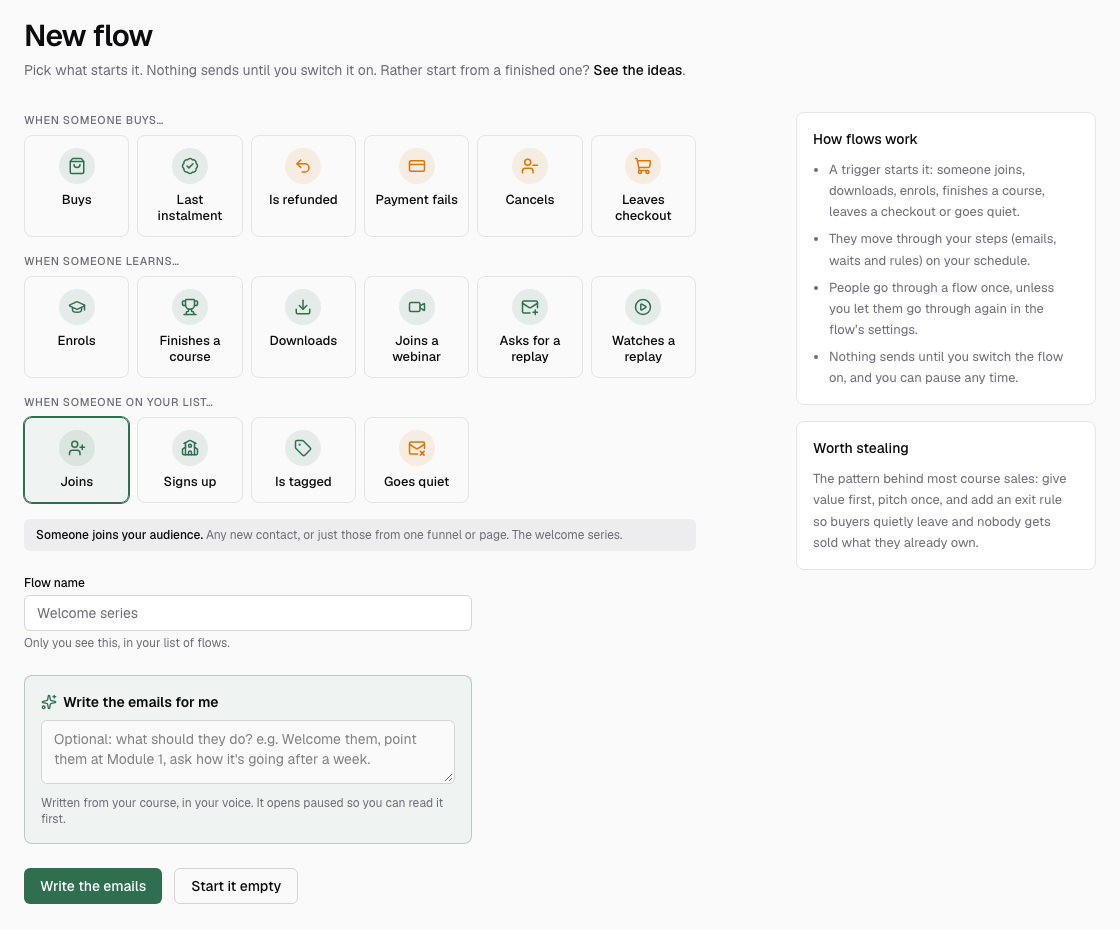
Click New flow at the top of the Flows page. Pick the moment that starts the flow from the tiles, grouped as When someone buys…, When someone learns… and When someone on your list…:
- Buys, Last instalment, Is refunded, Payment fails, Cancels and Leaves checkout: sales moments, for a thank-you series, a payment-plan follow-up or a win-back.
- Enrols, Finishes a course, Downloads, Joins a webinar, Asks for a replay and Watches a replay: learning moments, for onboarding, review requests and what to take next.
- Joins, Signs up, Is tagged and Goes quiet: list moments. Joins is the welcome series; Signs up is the sign-up form on your school’s home page.
Most moments let you narrow them: Which course?, Which product?, Which webinar?, or From where? for Joins, which lists your funnels, pages and sign-up forms so a flow can follow up one particular sign-up page. Goes quiet asks No clicks for 30, 60 or 90 days.
Give it a Flow name (only you see it). Then either add a note under Write the emails for me and click Write the emails, or click Start it empty to write them yourself.
Write the emails and set the waits
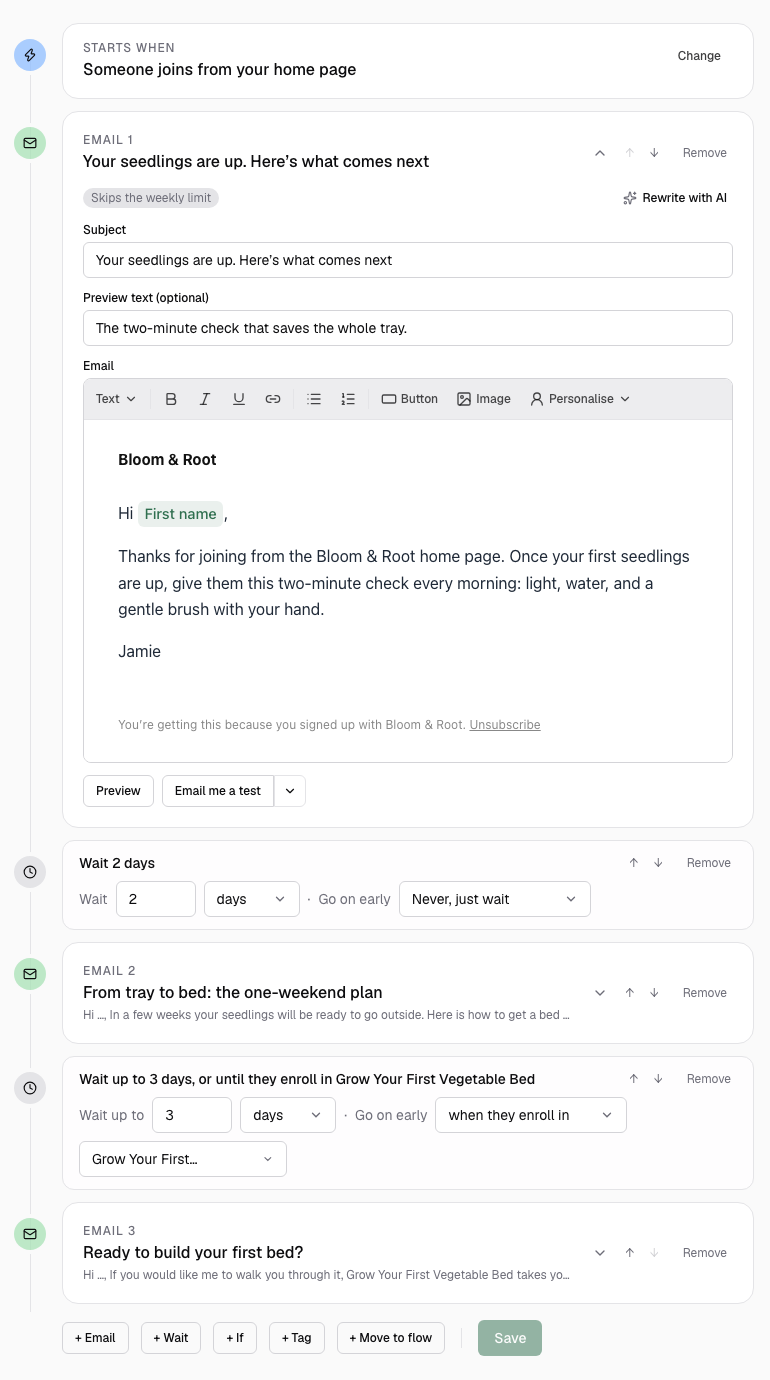
The editor shows your flow as one line, starting with Starts when and then each step in order. Add steps with the buttons under the line: + Email and + Wait. Move a step with the up and down arrows, or Remove it.
Each email has a Subject (with its own Personalise menu for the person’s name), Preview text (optional) and the Email itself. Write it with AI (Rewrite with AI once there’s text) writes one email knowing where it sits in the flow. A wait counts in hours or days, up to 90 days, and Go on early can move someone on as soon as they buy, download, click an email or enrol, instead of waiting the full time.
Click Save when you’re done. If you try to leave with unsaved changes, Knola asks first.
Send people different ways, if you need to
Three more steps let one flow treat people differently:
- + If: “If they’ve bought (or downloaded, clicked an email, enrolled in) … skip to Email 3”. Everyone else carries on to the next step.
- + Tag: Add the tag or Take off the tag the moment they reach this step. A flow that starts on that tag starts for them.
- + Move to flow: ends this flow for them and starts another of your flows.
+ If appears once the flow has an email, and + Move to flow once you have another flow to move people to.
Decide who leaves early
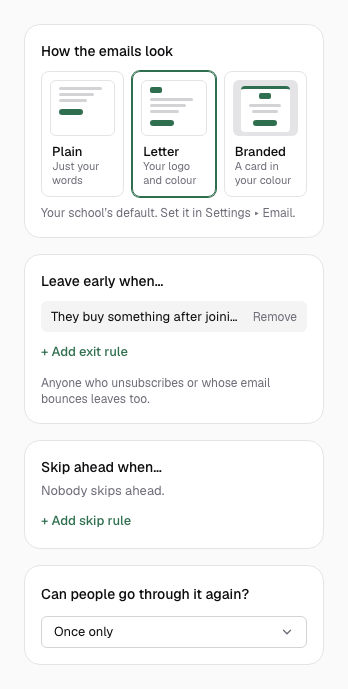
The cards beside the line shape who gets what. Under Leave early when…, click + Add exit rule and pick a reason, such as They buy…, They enrol in…, They finish… or They click a link in this flow. It’s checked before every step, so someone who buys during a wait never gets the next sales email. Anyone who unsubscribes or whose email bounces leaves too, without a rule.
Skip ahead when… jumps people straight to a later email when they act, for example buyers past the pitch to the thank-you. Can people go through it again? is Once only unless you choose to let them repeat it. How the emails look picks Plain, Letter or Branded for this flow.
Send yourself every email
Click Send me every email at the top of the editor. Every email in the flow arrives in your own inbox now, in order, so you can read the whole story the way your readers will. Only you get them.
Switch it on
Click Switch on. If something is missing, the button is greyed out and the line under it says what, for example Add an email first., Choose where replies go first. or a blank in brackets still to fill in, with Show me to jump to it.
A flow only picks up people whose moment happens after you switch it on, so a new welcome series doesn’t email your whole existing list. For moments like joining your list, enrolling or finishing a course, a tick box under the button offers to add the people who already match (it reads “Also add the …”, with the number of people). Leave it unticked to start fresh.
Knola also tells you if your email domain isn’t verified yet (the flow goes on and its emails wait until it is), or if another flow that’s on starts from the same moment, so people would get both.

See how it’s going
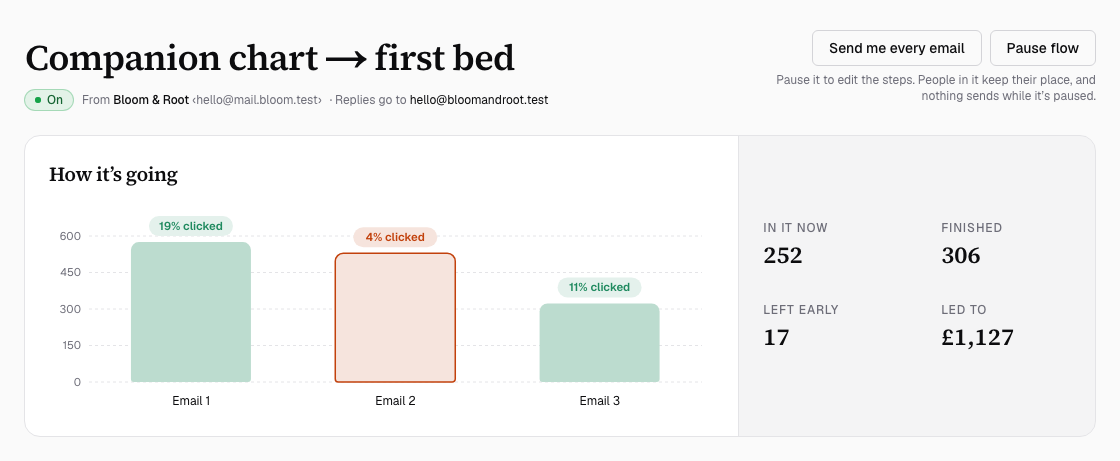
Once emails go out, the editor shows How it’s going: a bar for each email, plus In it now, Finished, Left early and Led to (what its emails led to, over the last 90 days). Each email shows how many were sent and the share who clicked, how many people are waiting at it, and what it led to. The email losing the most people is marked, so you know which one to rewrite.
On the Flows page, each running flow’s card shows Joined · 30 days, Clicked and Led to, and the strip above adds up every flow that’s on.
Change a flow that’s running
To change the emails, waits or what starts it, click Pause flow, make your changes, Save, then Switch on again. While it’s paused nothing sends, and everyone in it keeps their place. You can change the exit rules, skip rules, repeats and look while it’s on.
To delete a flow, pause it, then choose Delete this flow from the three-dot menu beside the buttons. People in it stop getting its emails straight away, and its send history is deleted with it.
What happens to people already in a flow if I turn it off or edit it?
They keep their place. While a flow is paused nobody gets its emails and nobody new joins; when you switch it back on, everyone carries on from where they were. People whose moment happened while it was paused don’t join on their own, but you can bring them in with the “Also add the …” tick box when you switch it on. If you remove the email someone was waiting for, they move on to the next step that’s still there.
Can I send a welcome sequence to new subscribers?
Yes. Start a flow on Joins (or use the Welcome new subscribers ready-made flow) and everyone who joins your list after you switch it on gets it. Use From where? to welcome people from one sign-up page with their own emails. People you import from another tool don’t start it, so moving your list over never sends a pile of welcome emails at once.
Can AI write my email sequence?
Yes. Describe the flow in a sentence and click Build it, choose Write the emails for me on a ready-made flow, or click Write the emails on New flow. The emails are written from your courses, in your voice, and the flow opens paused so you can read every email before anything sends.
Do flow emails count towards my email allowance?
Yes. Each flow email uses one of your monthly sends, shared with broadcasts. If you run out, the flow’s emails wait and carry on from where they stopped once you have more sends: nobody falls out of the flow. See your email allowance.
Will someone get the same flow twice?
No, not unless you allow it. Each person goes through a flow once, ever, until you change Can people go through it again? to let them repeat it after a set number of days. Separately, your weekly limit (Most emails one person gets in a week in Settings → Email, broadcasts and flows together) makes a flow email wait for anyone who has had enough that week. An email marked Skips the weekly limit goes anyway, because it answers something they just did.