
What you can send with Email in Knola
See everything Email in Knola does, from one-off broadcasts to flows that send themselves, AI that writes them and the numbers that show what worked.

 By Knola7 min read
Email is built into your school, so you don’t need a separate email tool. Everyone who signs up, downloads a freebie or buys from you is already on your list, and you write to them from the same place you run your courses. This page is the map: what each part does, and which guide to read next.
The Email overview
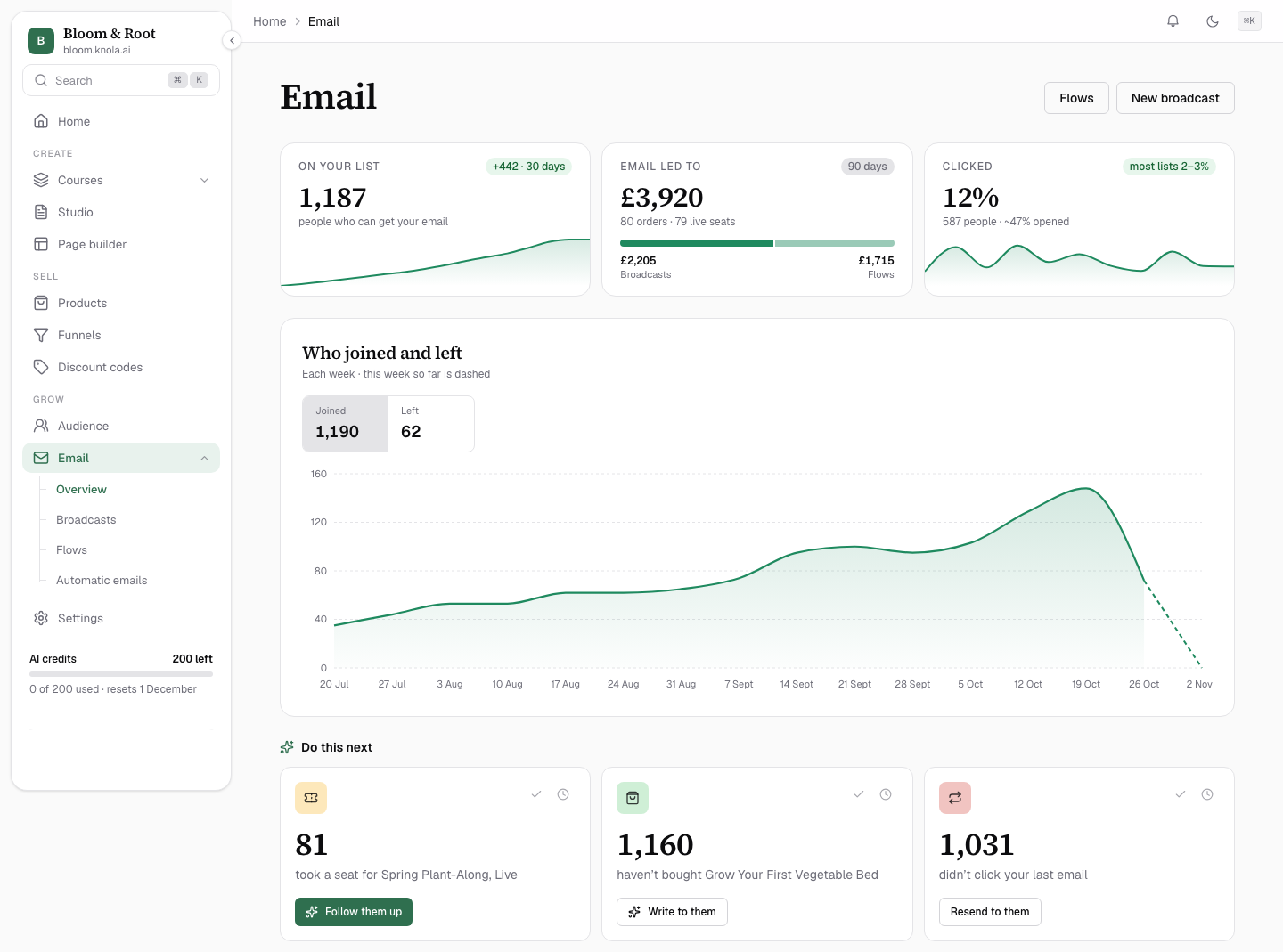
Click Email in the admin sidebar. It opens on Overview, with Broadcasts, Flows and Automatic emails listed underneath. The top right has two buttons: Flows and New broadcast.
Once you have people on your list, the overview shows how email is going at a glance:
- On your list: how many people can get your email, with the change over the last 30 days.
- Email led to: the sales, live seats and enrolments your emails brought in over the last 90 days, from broadcasts and flows together.
- Clicked: the share of people who clicked a link, with a rough open rate beside it.
- Who joined and left: a weekly chart of new sign-ups against unsubscribes.
- Do this next: up to three suggestions drawn from your own numbers, each with one button that does the work. The tick (Done) and the clock (Not now) on each card hide it until its number changes.
- Who’s on it: how many of your list have bought from you, and where everyone came from.
- List health: whether your emails are being delivered, bounced, reported as spam or unsubscribed from.
A school that hasn’t sent anything yet sees something simpler: a large What do you want to send? box, and Worth doing next, three ready-made flows picked for what is in your school.
Broadcasts: one email, sent once
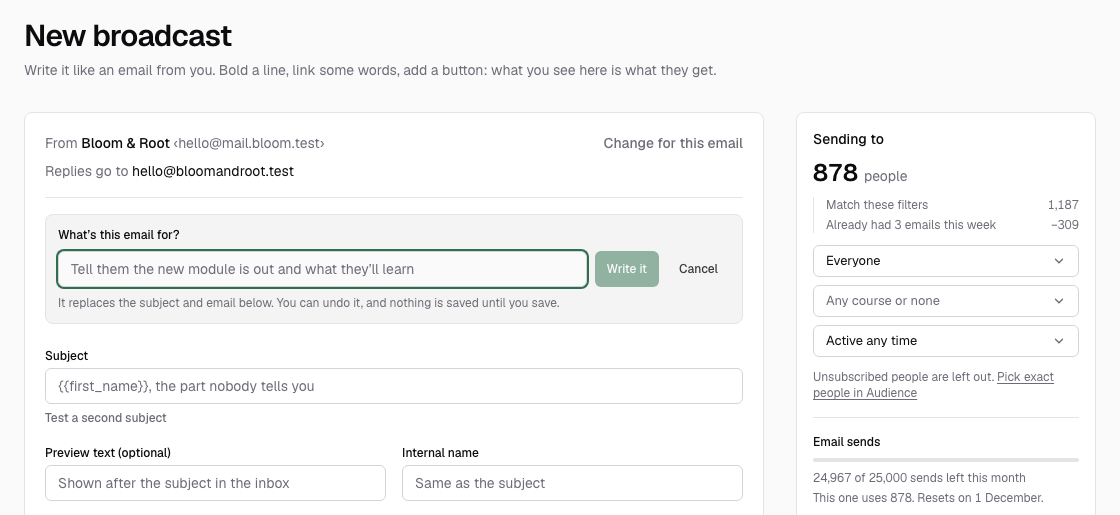
A broadcast is one email to the people you choose: your whole list, your buyers, the students on one course, or the leads who downloaded a guide last week. Use it for news, a launch, a new module or a weekly newsletter. You can send it now or pick a time for it to go out.
Broadcasts lists everything you have sent, with how many people opened and clicked each one. Send a broadcast to your list walks through writing, choosing who gets it and sending.
Flows: emails that send themselves
A flow is a series of emails that starts when someone does something, then sends each one on its own schedule. Someone joins your list, buys a course, signs up for a live session or leaves at checkout, and the right emails follow without you lifting a finger.
Flows shows the ones that are on and the ones that are off, and a set of ready-made flows to start from. A new flow is always created paused, so nothing sends until you switch it on. How to build an email flow that sends by itself covers it step by step.
Automatic emails Knola sends for you
Some emails go out without you writing anything: receipts, course access links, the email that delivers a download, checkout reminders, certificates and live session reminders. They come ready to go, and you can change the words or switch one off.
The foot of the overview counts how many are on, with a Review them link. They also sit under Email ▸ Automatic emails. See How to customise the emails Knola sends for you.
AI that writes your emails
You never have to start from a blank page. AI turns up in three places:
- What do you want to send?: describe the email in a sentence and press Write it. AI writes it and picks who it goes to, from your own list. It’s saved as a draft, so nothing sends until you press Send.
- Describe a flow and we’ll build it: the same idea on the Flows page. Press Build it and AI writes the emails, sets the timing and picks the moment that starts it. The flow is created paused.
- Write it with AI: above any email you are writing. Say what the email is for and AI fills in the subject and body. Once there are words in the box it becomes Rewrite with AI, and Undo puts back what you had.
AI writes from what is in your school (your courses, your downloads, your sign-up pages) and learns how you sound from the last few broadcasts you sent. Read every draft before you send it, as you would anything written for you.
Your list
Your list lives in Audience in the sidebar. Everyone who signs up on a form, downloads a freebie, joins a waitlist, registers for a live session or creates a student account is there, one row per person. You can also import a list you already have.
Only people who have agreed to hear from you get broadcasts and flows. Signing up on a form or downloading a freebie counts as agreeing, because the form says so under the button. Someone who buys without being asked is a customer but not on your list: they get receipts and course emails, and can say yes to your news on the thank-you page or in their access email. Anyone who unsubscribes is never emailed again.
See what worked
Every number comes from your own sends. Three places show them:
- The overview: your list, what email led to over 90 days, clicks and List health. List health shows Delivered, Bounced, Spam reports and Unsubscribed, each marked healthy or to watch once you have sent 50 emails.
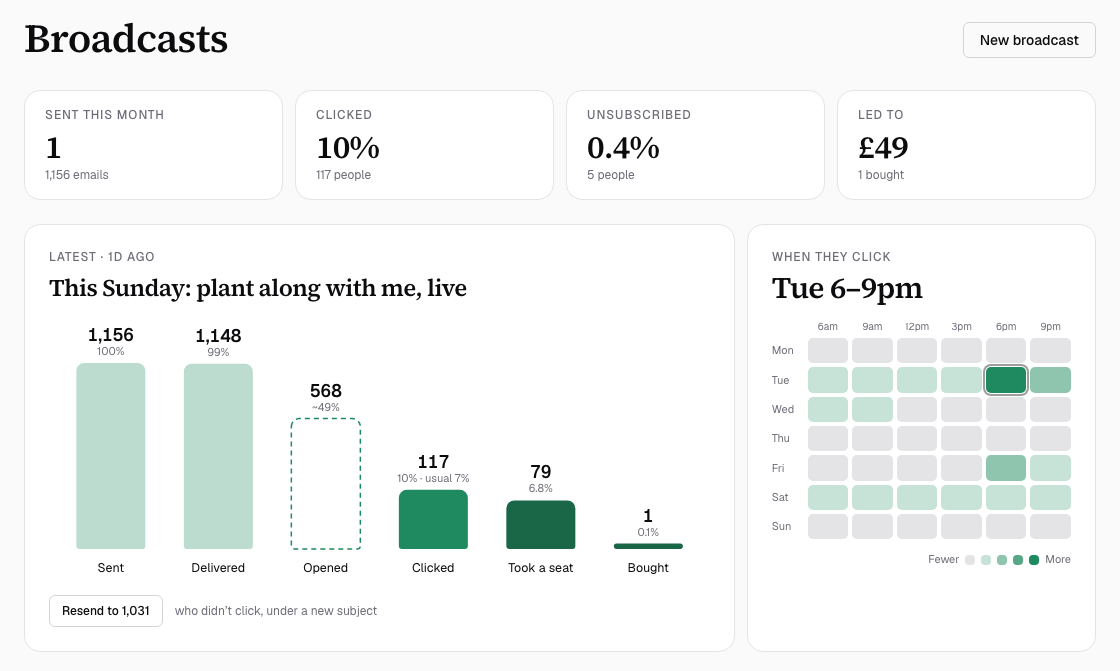
- Broadcasts: Sent this month, Clicked, Unsubscribed and Led to, then your latest broadcast step by step (Sent, Delivered, Opened, Clicked, and what people did next). Click any broadcast for its full report: who clicked, which links, and its health.
- Flows: for the flows that are on, In a flow now, Finished, Clicked and Led to.
Before you send: your own domain
Your emails go out from your own address, like [email protected], not from Knola. That is what gets them into the inbox instead of the spam folder. Until it is set up, the overview shows Connect your email domain with a Set it up button.
Two more things go in before your first send: where replies go, and your postal address for the email footer. All three live in Settings ▸ Email. Set up your email domain walks through it, and Keep your emails out of spam covers staying there.
Where everything lives
- Email ▸ Overview: how email is going and what to do next.
- Email ▸ Broadcasts: one-off emails, sent or scheduled, and their reports.
- Email ▸ Flows: emails that send themselves.
- Email ▸ Automatic emails: the emails Knola sends for you.
- Audience: everyone on your list.
- Settings ▸ Email: your domain, sender, footer, sending rules and sends left.
- Settings ▸ Plan & billing: your email sends and send packs. See How your email sends are counted.
Do I need Mailchimp or Kit as well as Knola?
No. Knola sends broadcasts and flows to your list itself, so you can run your email without another tool. If you’re moving from one, bring your list with you.
What is the difference between a broadcast and a flow?
A broadcast is one email you send once, to the people you pick. A flow is a series of emails that starts by itself when someone does something, such as joining your list or buying a course, and keeps running for everyone who comes after.
Can AI write my emails?
Yes. Describe what you want in a sentence and AI writes the broadcast or builds the whole flow, then saves it as a draft or a paused flow for you to check. Nothing sends until you say so.
Who gets my emails?
Only people who agreed to hear from you: those who signed up on a form, downloaded a freebie, joined a waitlist or said yes after buying. Buyers who were never asked still get their receipts and course emails, but not your broadcasts or flows.