

Send a broadcast to your list
Write a one-off email, choose who gets it, send yourself a test, then send it now or schedule it and see who clicked and what it led to.

 By Knola9 min read
A broadcast is one email to the people you choose: everyone, your buyers, or the leads who downloaded a guide last week. It goes out from your own email domain, so if you haven’t connected one yet, set up your email domain first. You can write and save drafts while it finishes checking.
Start a new broadcast
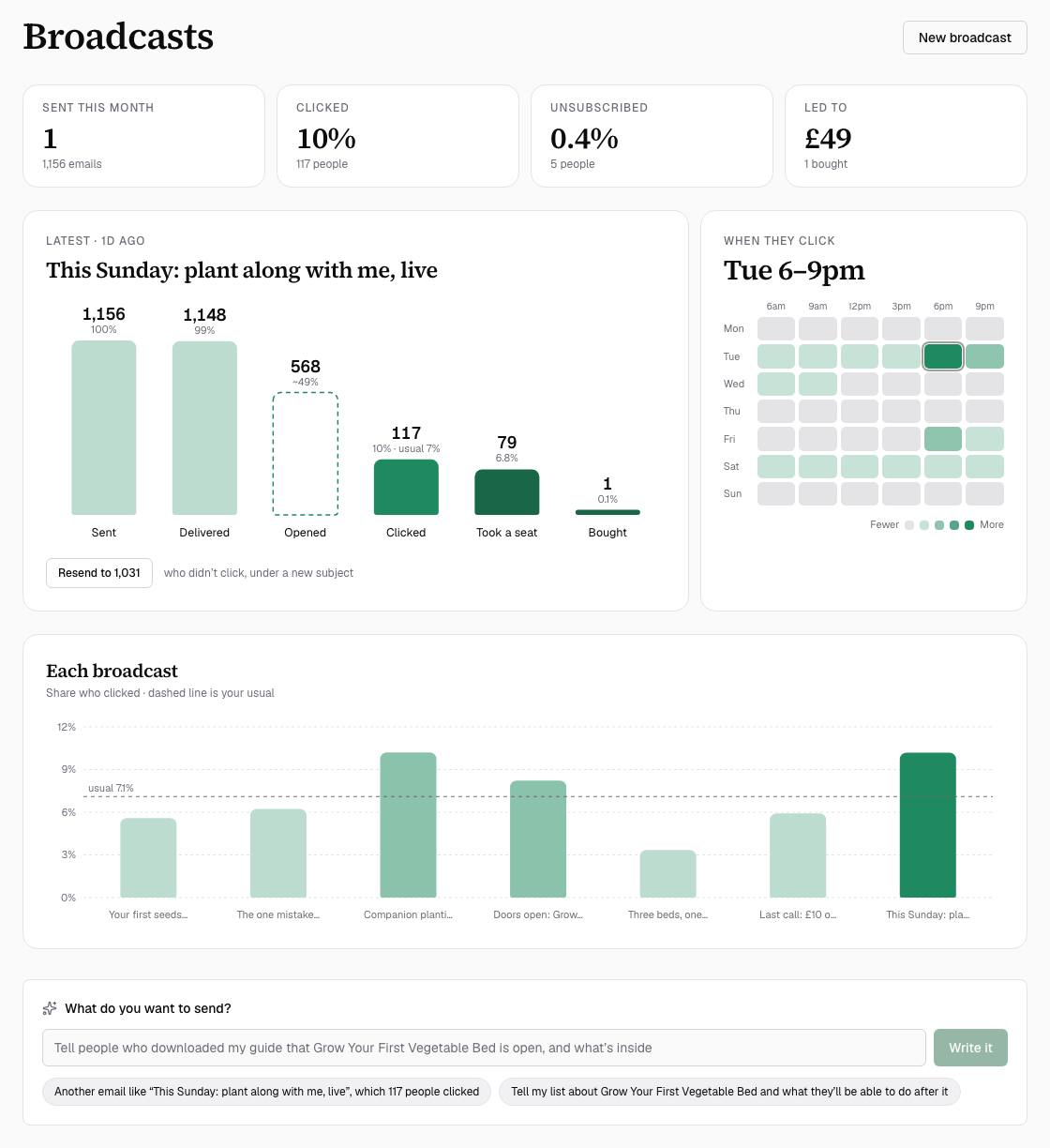
In your admin, open Email and then Broadcasts, and click New broadcast at the top right. The composer opens with the email on the left and who it goes to on the right.
Prefer to start from a sentence? Type what you want to say into the What do you want to send? box on the Broadcasts page and click Write it. Knola writes the email, picks who it goes to from your own list and opens it as a draft with the note We wrote this and picked who it goes to. Nothing goes out until you send it.
Check who it’s from and where replies go
The top of the email shows it the way an inbox will: From with your sender name and address, and Replies go to with the address that gets people’s answers. Both come from your school’s settings in Settings → Email.
- Change for this email: set a different From name, this email only or Replies go to, this email only. Leave them empty to use your school’s.
- Replies go to says not set yet: type the address you want replies to reach and click Save for every email. Your emails come from an address with no inbox, so this is how you hear back.
- Add your postal address before you send: click Add address, type it and click Save address. US and Canadian law ask for one at the foot of every marketing email, and Knola prints it in your footer.
Write the subject and preview text
Fill in the Subject. To put each person’s name in it, click Personalise at the end of the box and choose First name, Full name or Email address: it goes where your cursor is. Where Knola doesn’t know someone’s name it reads “there”, so a name reads best mid-sentence (“Your seedlings this week, Jane”). Preview text (optional) is the line people see after the subject in their inbox. Internal name is only for you, so you can find the broadcast later; leave it empty and it uses the subject.
To try two subjects, click Test a second subject and fill in Second subject to test. Choose how much of your audience the test takes (10%, 20% or 30%) and how long it runs (1 hour, 4 hours or 1 day). Each subject goes to half of that slice, and the one more people click goes to everyone else. A test needs at least 200 people; with fewer, the email goes out with the first subject only. Click Don’t test to switch it off.
Write the email
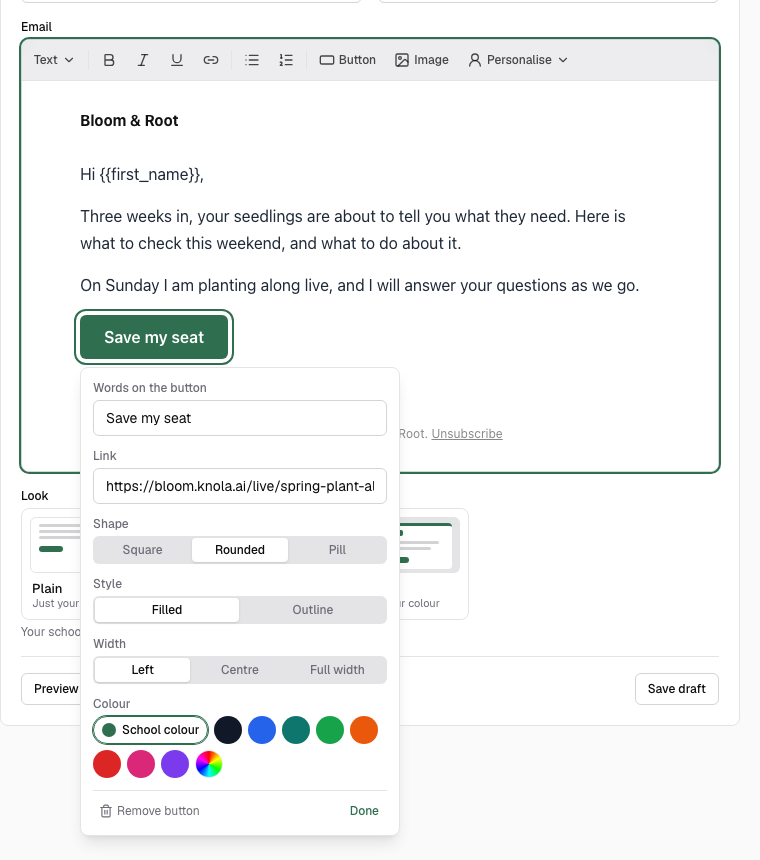
Write in the Email box as you’d write to one person. What you see is what they get. The bar along the top lets you change the text style (Text, Heading or Subheading), make words bold, italic or underlined, add a link and make lists.
- Button: adds a button people tap. Click it to set the Words on the button and its Link (start with https://), then its Shape, Style, Width and Colour. Click Done when it looks right. A button without a link shows Add a link.
- Image: adds a picture. Click Upload a picture to choose one from your computer (PNG, JPG, WebP or GIF, up to 10 MB), or paste a web address under Or paste its web address. You can also drag a picture straight into the email, or paste one. Describe it in What it shows for people whose email hides pictures. Uploaded pictures are kept in your school’s files.
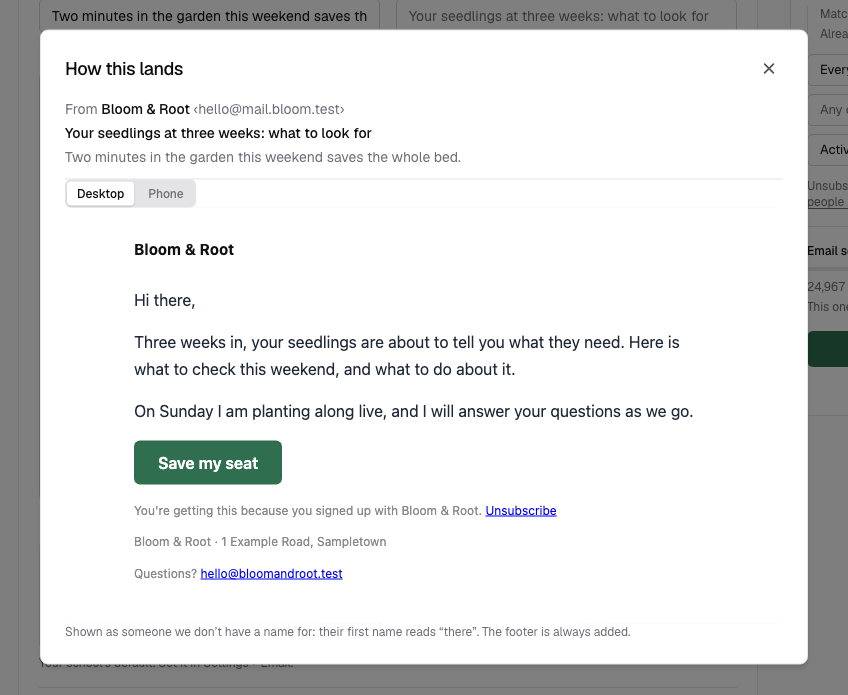
- Personalise: drops in First name, Full name or Email address, filled in for each person. When Knola doesn’t know someone’s name, it says “there”.
Want help with the words? Click Write it with AI above the subject, say what the email is for and click Write it. Once there’s a draft, the same button reads Rewrite with AI: say what should change, or leave it empty to polish what’s there, and click Rewrite it. It replaces the subject and email, and Undo puts your version back.
Click Save draft whenever you like. It shows Saved once everything on screen is kept.
Choose how it looks
Under Look, pick how your words are dressed: Plain (just your words), Letter (your logo and colour) or Branded (a card in your colour). The email box changes to show it straight away. If you don’t pick one, it uses your school’s default, which you set in Settings → Email.
Choose who gets it
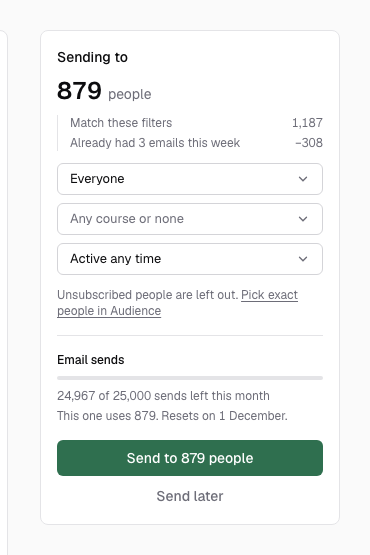
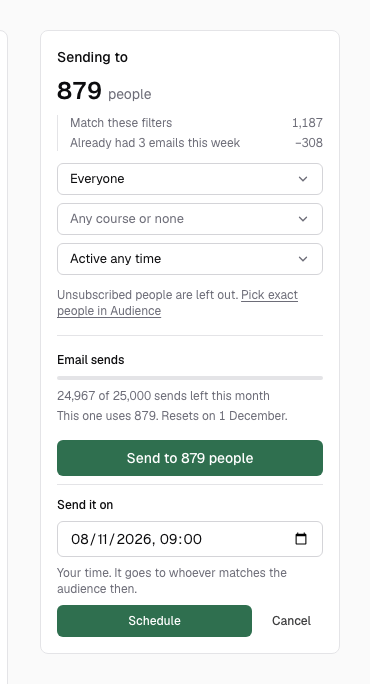
The card on the right, Sending to, shows how many people this email will reach. Narrow it with the menus underneath, and the number updates as you go:
- Everyone, Leads (haven’t bought yet) or Customers.
- A course, a tag, a webinar or paid newsletter, when you have them, and a saved segment if you’ve saved one in Audience.
- How active they’ve been, from Active in the last 7 days to Quiet for 90+ days.
For anything more exact, click Pick exact people in Audience, filter your list there and click the Email these button, which shows how many people it will send to.
Preview it and send yourself a test
Under the email, click Preview to see How this lands, with the footer every email carries. Switch between Desktop and Phone, since most people read on a phone.
Click Email me a test to get it in your own inbox, with “[Test]” in front of the subject. To send it to a teammate instead, click the arrow beside it and choose them from Send a test to someone on your team. A test goes to you and your team only and doesn’t count towards your sends.
Send it now or schedule it
At the bottom of the right-hand card, Email sends shows what you have left and how many this one uses. The button under it reads Send to followed by the number of people. Click it, check the question it asks, and click Yes, send (or Not yet to go back).
To send it later, click Send later, choose a time in Send it on and click Schedule. The time is your own, at least 5 minutes ahead and within the next 90 days. It goes to whoever matches your audience at that moment. While it’s waiting, the email is locked; click Unschedule to change anything.
Wait for the check on your first broadcasts
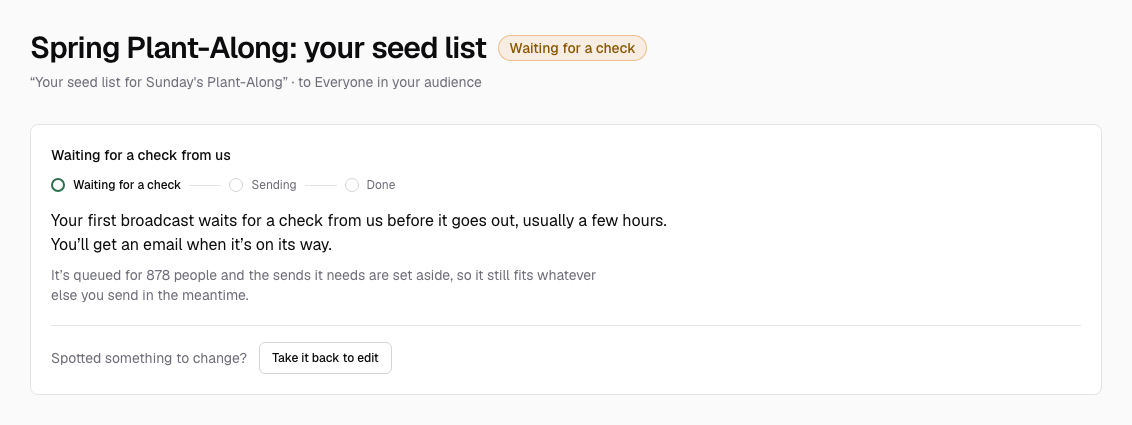
Knola looks over your first broadcasts before they go out, to keep every school’s email landing in inboxes. The composer tells you before you press Send, for example: “Your first broadcast waits for a check from us before it goes out, usually a few hours.” Your first 3 broadcasts are checked this way, and after that they go straight out. A later one is checked again if your last broadcast had a lot of bounces or spam reports, or if it goes to far more people than you’ve sent to before.
While it waits, the broadcast shows Waiting for a check. It’s queued and the sends it needs are set aside, and you’ll get an email when it’s on its way. A broadcast to 200 people or fewer, held only because it’s one of your first, goes out by itself about two hours after you send it, even if nobody has looked yet.
- Spotted a mistake? Click Take it back to edit, then Yes, take it back. It becomes a draft again, and sending it again starts the check over.
- If it comes back marked Needs a change, the note at the top says what to fix. Nothing was sent and your sends are back. Make the change and send it again.
Watch it go out and read the results
Once it’s sending, the broadcast’s page shows Sending now and how many have gone so far. Click Stop sending if you need to: nobody else gets it, everyone it has already reached keeps it, and the sends it didn’t use come back.
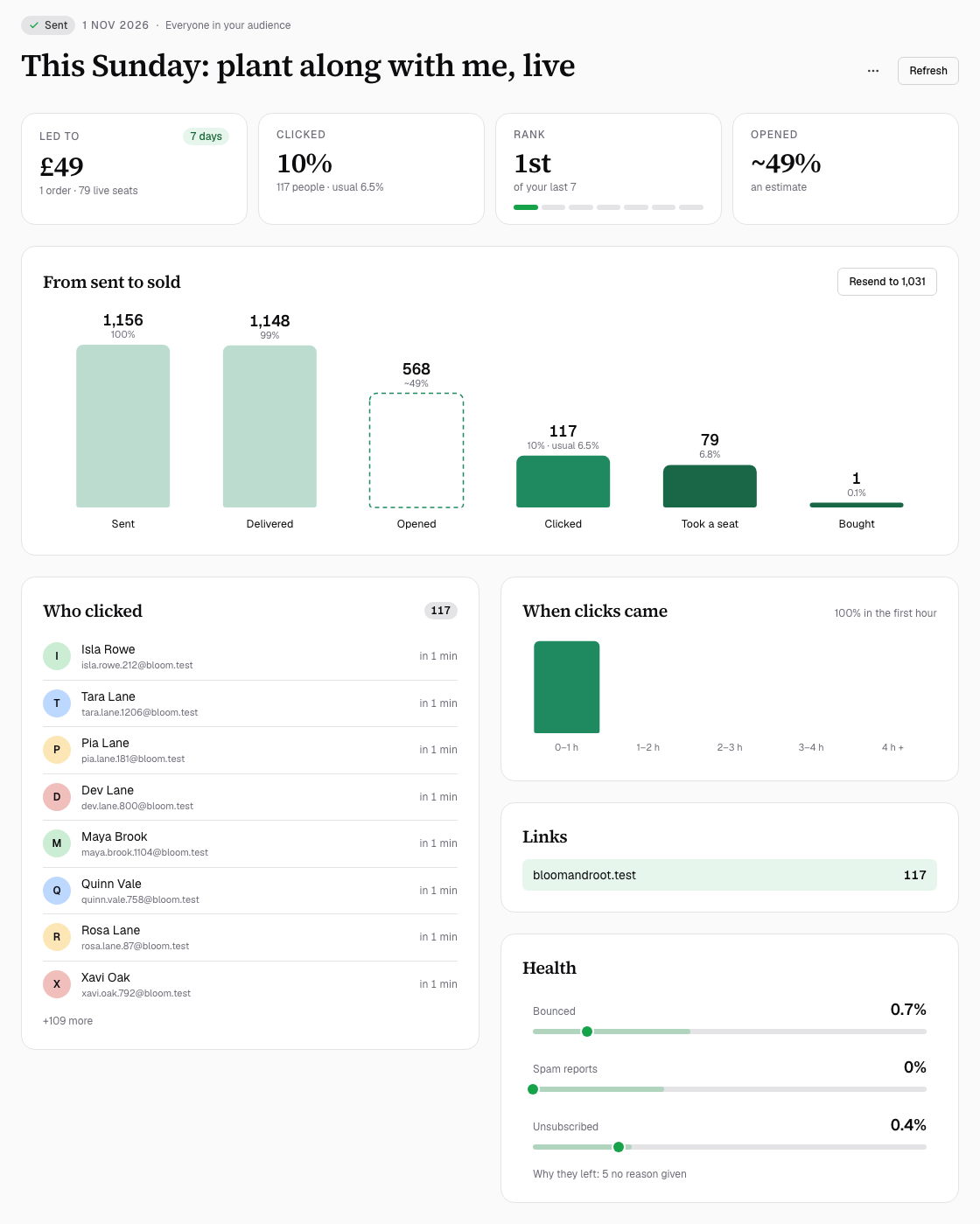
When it has gone out, the same page becomes its report:
- Led to: the sales, live seats, enrolments and finished lessons that followed, counted for 7 days after it arrived.
- Clicked: the share of people it reached who clicked. Clicks made by mail security software aren’t counted.
- Opened: an estimate, shown with a ~, because Apple Mail opens most email by itself.
- Who clicked, When clicks came and Links: the people, the timing and which links they used.
- Health: how many emails Bounced, how many Spam reports came in and how many people Unsubscribed.
Open How we count at the bottom for the full rules. Back on the Broadcasts list, every broadcast shows the same numbers side by side.
Why hasn’t my broadcast gone out yet?
Most often it’s one of your first broadcasts, waiting for a check from Knola, usually a few hours. It shows Waiting for a check, and you’ll get an email when it’s on its way. It may also be scheduled for later (Scheduled), or, on a new email domain, going out a set number a day for a few days while inboxes get to know it. The broadcast’s page always says which.
Can I schedule a broadcast for later?
Yes. Click Send later, choose a time in Send it on and click Schedule. The time is your own, at least 5 minutes ahead and within 90 days, and it goes to whoever matches your audience at that moment. Click Unschedule to change it.
Can I send a test email first?
Yes. Click Email me a test under the email to get it in your own inbox, or use the arrow beside it to send it to someone on your team. Tests never go to your list.
Who receives my broadcast?
Only people on your list who match the audience you chose. Unsubscribed people are always left out. Buyers who weren’t asked about your emails at checkout aren’t on your list until they say yes on the thank-you page or in their access email, though they still get every receipt and access email. Anyone who has already had your weekly limit of emails is left out of that send.
Can AI write my email?
Yes. Describe it in the What do you want to send? box on the Broadcasts page and Knola writes a draft and picks who it goes to, or click Write it with AI in the composer to write or rewrite the email you’re on. Either way it’s a draft you read and send yourself.