

Import your email list from Mailchimp, Kit or a CSV
Bring the list you built in another email tool into Knola, with unsubscribes kept, tags carried across and a clear review before anything is added.

 By Knola8 min read
Moving to Knola does not mean starting your list again. Export it from the tool you use now, drop the file into Knola, and check exactly what will happen before a single contact is added. Anyone who unsubscribed there stays unsubscribed here, and importing never emails anyone.
Export your contacts as a CSV file
In your current email tool, export your contacts as a CSV file: one person per row, with a column of email addresses. Exports from Mailchimp, Kit, Kajabi, beehiiv, Substack, ActiveCampaign and MailerLite are recognised as they are, and any other CSV with an email column works too. Excel and PDF files do not, so save as CSV first.
- Mailchimp puts your subscribed, unsubscribed and cleaned (bounced) contacts in separate files. Import all of them, the unsubscribed and cleaned ones too: it stops those people being emailed if they ever turn up in another list.
- If your tool can include when each person last opened or clicked, include it. Knola uses it to help you start with your most engaged readers.
- Tags, groups or segments come across as tags, if they are in a column of the export.
Open Import contacts
In your admin, go to Audience and click Import contacts at the top of the list. If your audience is still empty, the button reads Import contacts from a CSV instead.
Drop in your file
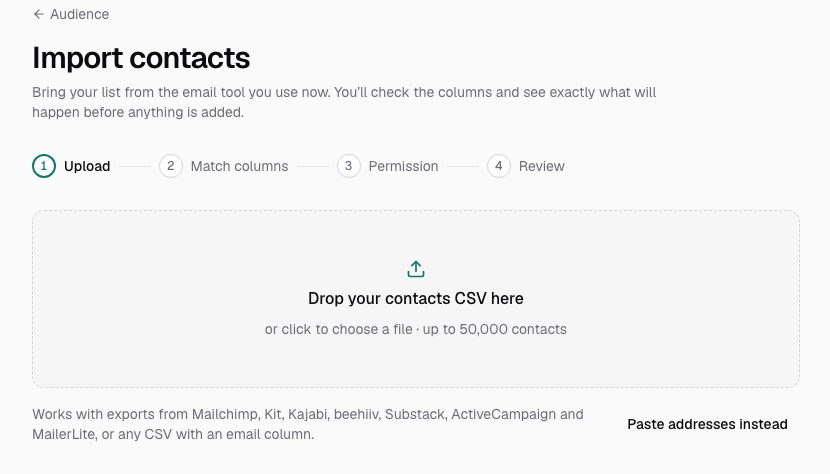
Drag the file onto Drop your contacts CSV here, or click the box to choose it. Knola reads the file and moves straight on to matching its columns. Nothing has been added yet.
Only have a handful of addresses, or rows in a spreadsheet? Click Paste addresses instead, paste one address per line (or the rows with the header row first), and click Continue.
Match your columns
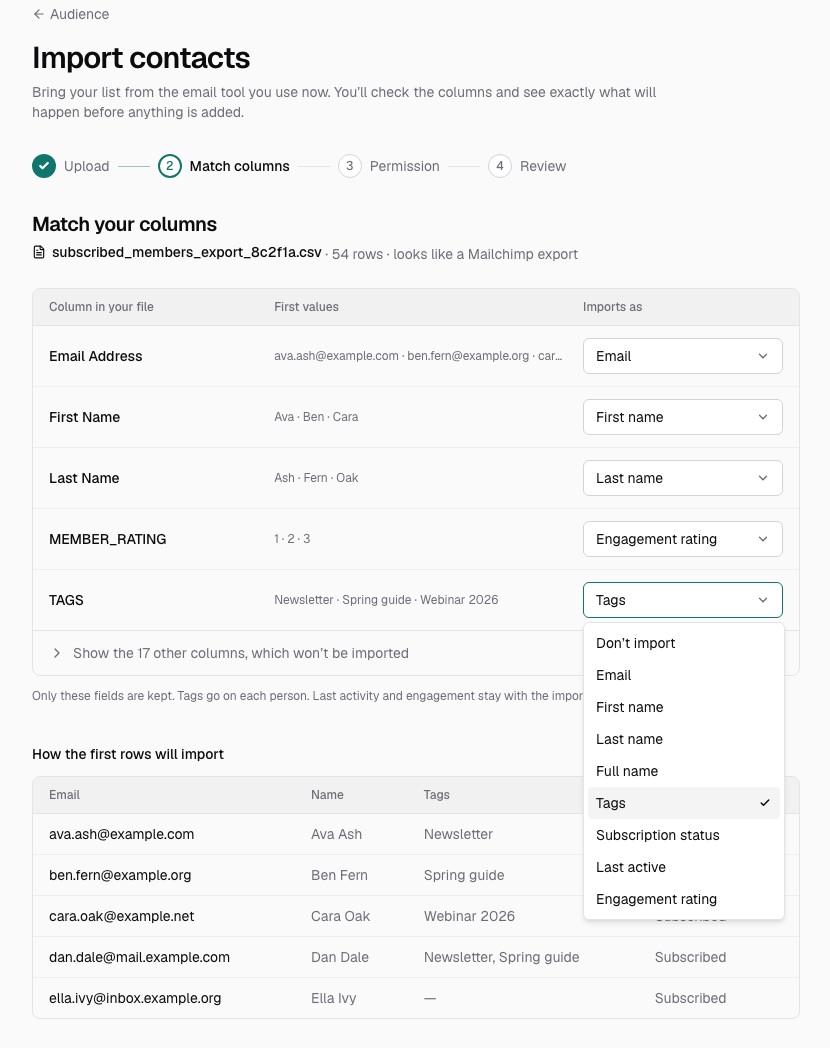
Knola works out which column is which, and says when the file looks like an export from a tool it knows, for example "looks like a Mailchimp export". Each row shows the column in your file, its first few values, and what it Imports as. Change any of them from the dropdown, or pick Don’t import to leave a column out.
- The fields Knola keeps are Email, First name, Last name, Full name, Tags, Subscription status, Last active and Engagement rating. Only Email is needed.
- When a file has lots of columns, the ones that won't be imported fold away under a line that says how many there are, since most exports have far more than you need.
- If the file is Mailchimp's unsubscribed or cleaned list, a note says everyone in it is added as unsubscribed or bounced and will never be emailed.
Check How the first rows will import underneath, which shows the email, name, tags and status of the first few people as Knola will save them. When it looks right, click Continue.
Say where these people came from
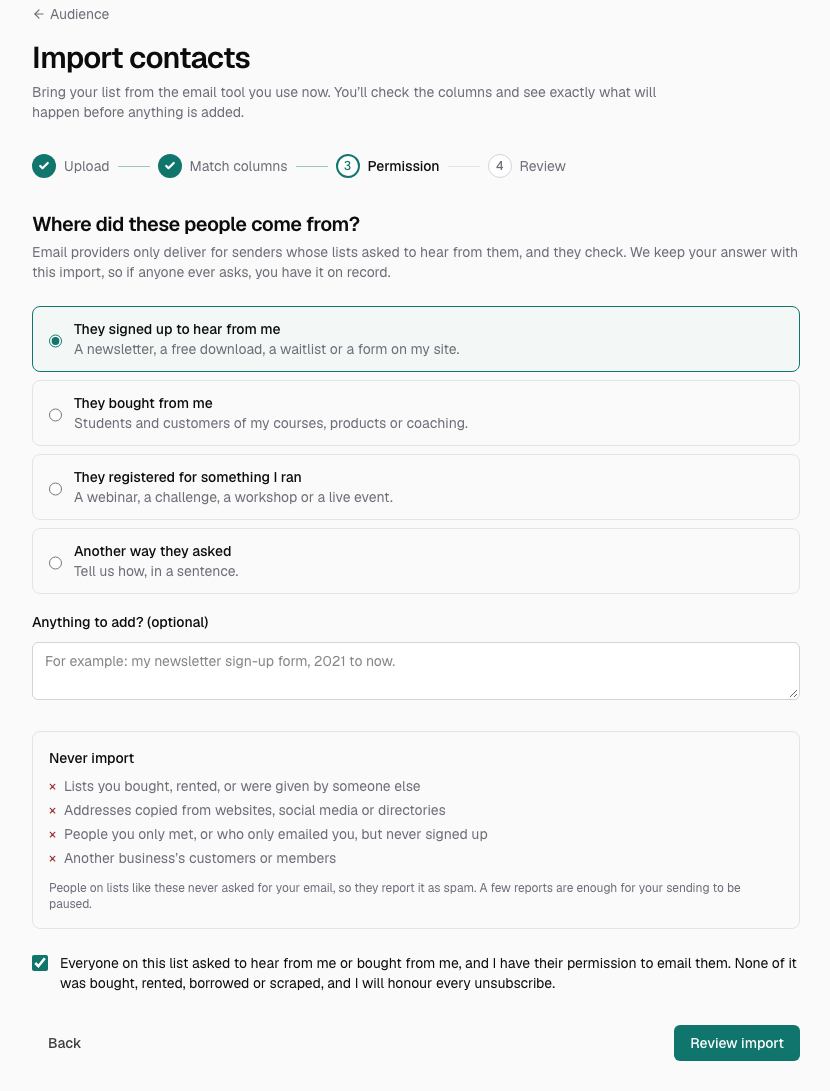
Inboxes like Gmail and Outlook only deliver for senders whose readers asked to hear from them, and they check. So under Where did these people come from? choose the one that fits:
- They signed up to hear from me: a newsletter, a free download, a waitlist or a form on your site.
- They bought from me: students and customers of your courses, products or coaching.
- They registered for something I ran: a webinar, a challenge, a workshop or a live event.
- Another way they asked: you write a sentence on how, under How did they ask to hear from you?
Read the Never import box: lists you bought, rented or were given, addresses copied from websites or directories, people you only met or who only emailed you, and another business's customers. Then tick the statement that everyone on the list asked to hear from you or bought from you, and click Review import. Knola keeps your answer with the import, so if anyone ever asks, you have it on record.
Review what will happen
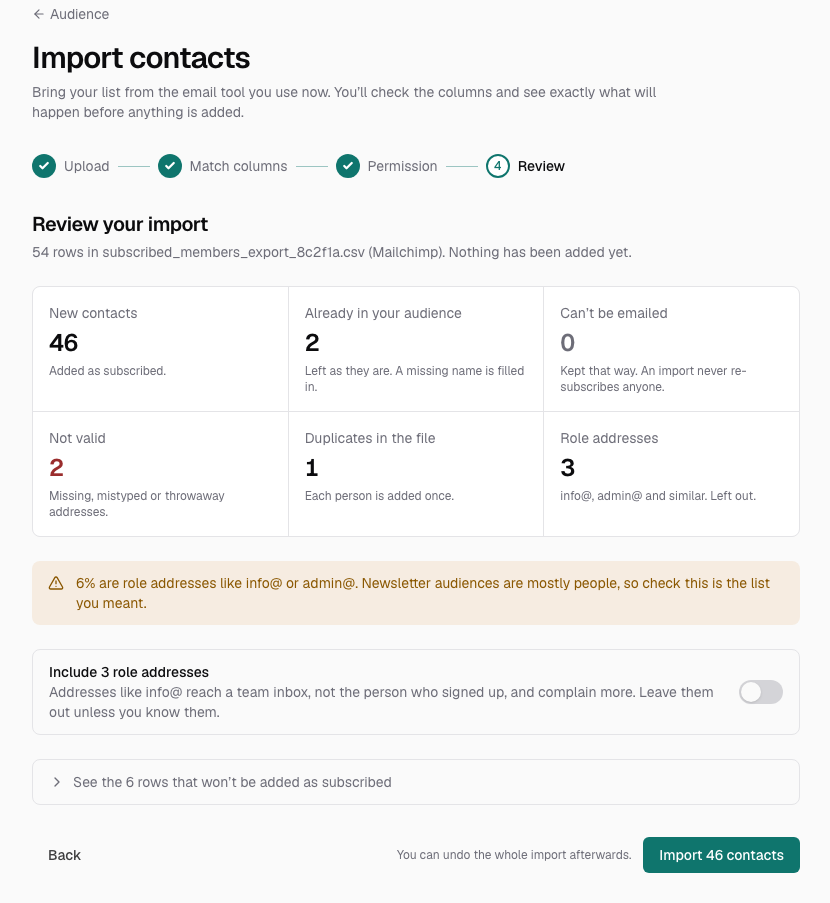
Review your import shows exactly where every row will end up, before anything is saved:
- New contacts: added and on your list.
- Already in your audience: left as they are. A missing name is filled in, and the file's tags are added.
- Can’t be emailed: kept that way, because an import never re-subscribes anyone. That covers people marked unsubscribed, cleaned or unconfirmed in your file (added as unsubscribed), people already in your audience who aren't on your list, and addresses that bounced or were reported as spam before (not added).
- Not valid: missing, mistyped or throwaway addresses. Where an address looks like a typo, Knola suggests the fix.
- Duplicates in the file: the same address twice. Each person is added once.
- Role addresses: info@, admin@ and similar, which reach a team inbox rather than the person who signed up. They are left out unless you switch them on with the "Include 3 role addresses" toggle (it shows your own count).
Open the line that reads, for example, "See the 12 rows that won’t be added as subscribed" to see each one with its reason, and Download as CSV to fix them in your file. Knola also warns you when a list looks old or was never opted in: lots of dead addresses, lots of role addresses, or mostly one company's addresses.
Import, then plan your first send
Click the import button, which says how many people it will add, for example Import 1,240 contacts. Keep the tab open until the bar finishes. If it stops part way, what has been added so far stays, and Resume import carries on from where it stopped.
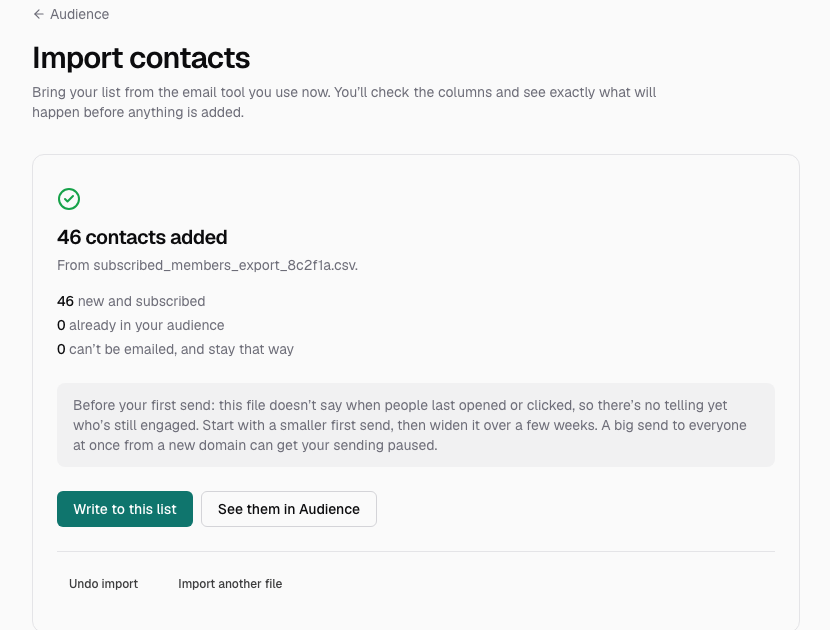
When it is done you see how many were added, how many were already in your audience and how many can't be emailed, with advice for your first send. A list that is new to your domain sends best when you start with the people who opened your emails most recently and widen it over a few weeks. If your file said when people were last active, Write to your most engaged first starts a broadcast to just them. If not, Write to this list starts one to everyone in the import, so keep the first send small. See them in Audience shows the people from this import.
If something still stands between you and sending, such as your email domain or your postal address, a line under the buttons says what and links to it.
Undo an import if you need to
Imported the wrong file? Click Undo import on the finished screen, or Undo beside it under Past imports on the Import contacts page, then confirm with Undo import. The contacts that import added are removed, and people who were already in your audience stay as they were.
Anyone who can't be emailed, or has since joined another way, is kept, so that stays on record. The import itself stays in Past imports, marked Undone, and Knola keeps the record of where you said the people came from.
How do I move my list from Mailchimp or Kit to Knola?
Export your contacts as a CSV from Mailchimp or Kit, then go to Audience → Import contacts in Knola and drop the file in. Knola recognises both exports, matches the columns for you and keeps everyone who unsubscribed there unsubscribed here. From Mailchimp, import the unsubscribed and cleaned files as well as the subscribed one.
Do I need permission to email imported contacts?
Yes. Every import asks where the people came from and has you confirm that everyone on the list asked to hear from you or bought from you. Bought, rented, borrowed or scraped lists are never allowed: those people report your email as spam, and that can get your sending paused.
What file format do I need to import contacts?
A CSV file with one person per row and a column of email addresses. A header row helps but is not required, and up to 50,000 contacts or 25 MB go in one import. If you have a spreadsheet, save it as CSV first, or paste the addresses straight in.
Will importing my list send anyone an email?
No. Importing adds people to your audience and nothing more. They don't enter your flows for new people, and tags in the file don't start tag flows. Nobody hears from you until you send a broadcast.