

How to add co-hosts, moderators and speakers
Bring a co-host, a moderator or a guest speaker into your live session: pick the right role, send their link, and add someone during the call.

 By Knola3 min read
You do not have to run a session alone. Each person on your team gets their own link in, and a role that decides what they can do.
Add someone before the call
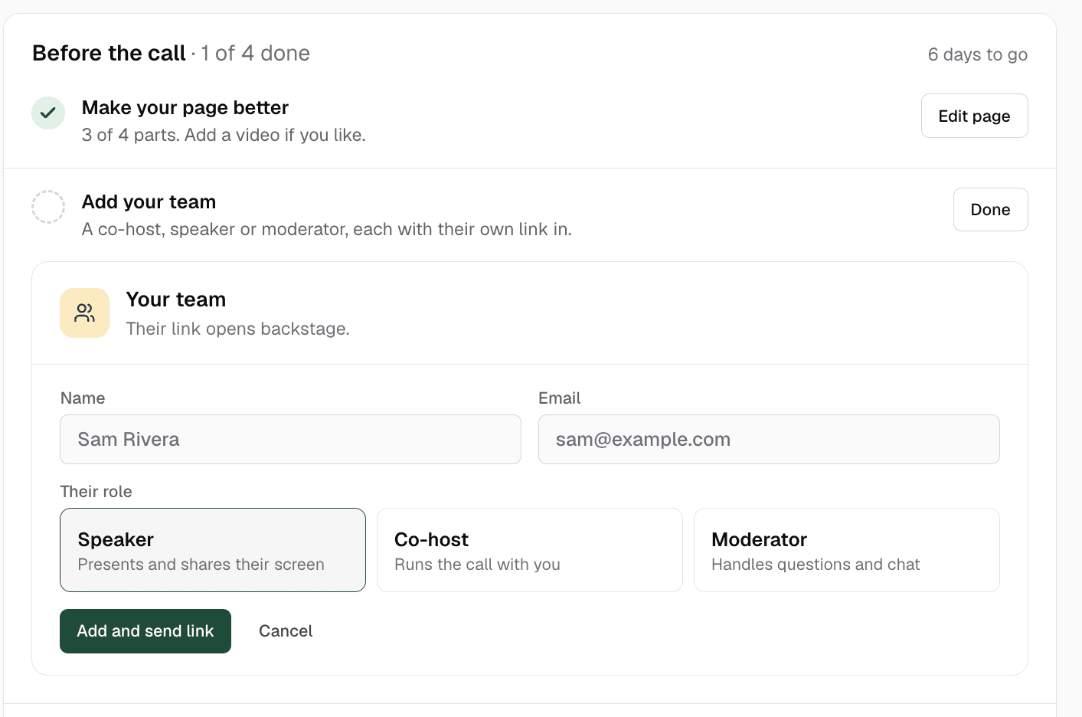
Open the event from Live. Under Before the call, find Add your team and click Add someone. Fill in Name and Email, choose Their role, and click Add and send link.
Pick the right role
- Co-host: runs the call with you. A co-host can do everything you can: go live, bring people up, show offers, run polls and end the call.
- Speaker: presents and shares their screen. This is the role for a guest. A speaker cannot mute or remove anyone, or end the call.
- Moderator: handles questions and chat. A moderator lets people in, mutes them if needed, runs polls and answers questions. A moderator cannot remove anyone or end the call.
You can change a role from the menu on that person's row.
They get their own link
Each person is emailed a link that takes them to the event's next call, in their role. They do not need a Knola account or a password. They also get the reminders the day before and an hour before, with the same link.
The ⋯ menu on a row has Copy their link, Send the link again and Take off the team. Once someone is off the team, their link stops working.
Add someone from your school
Under Add from your school: are the people who already teach in your school. Click a name and they join the team as a Co-host.
Invite someone during the call
In the room, open More and choose Invite to the team. Enter a name and an email, pick the role, then click Email their link or Just copy the link to send it yourself.
Talk to your team in private
In the room, the Team tab is a chat that only your team sees. Use it to hand over a question or agree who speaks next.
Does a co-host need a Knola account?
No. Their link is all they need. It takes them straight to the call in their role.
Can a guest speaker share their slides?
Yes. Add them as a Speaker. They are on stage with their camera and can share their screen.
What is the difference between a co-host and a moderator?
A co-host can do everything the host can, including going live and ending the call. A moderator looks after questions, chat and polls, and cannot end the call.