

What attendees see and how they join
Follow a live session from your audience's side: signing up, the emails, joining in the browser with nothing to install, and the room itself.

 By Knola4 min read
Your audience never leaves your school. They sign up on your page, join from it in the browser, and come back to it for the recording.
They sign up
On a free event, a visitor gives an email and clicks Save my free seat. On a paid one they click Get a ticket and pay at your checkout. They do not need an account or a password for a free event.
The page then shows a count down, an Add to calendar button for the calendar they use, and a line saying when the room opens.
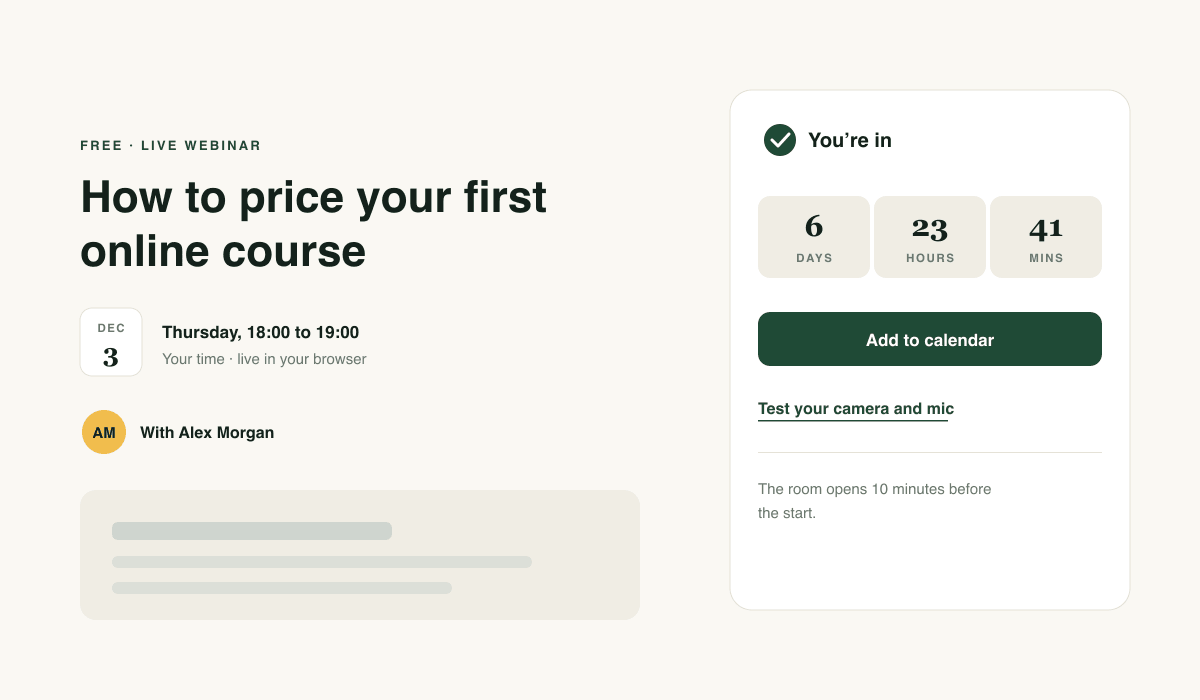
They get their emails
A confirmation comes at once, then a reminder the day before and another about an hour before. Each email has that person's own link, which works on any device without signing in. See emails and reminders for a live session.
The reminders have a Can't make it? link. Someone who uses it keeps their seat, and their reminders stop.
They can test their camera and microphone
Test your camera and mic on the event page opens a short check: they see themselves, watch a bar move when they speak, and play a tone to check their speakers. Nothing is recorded or sent anywhere.
They join in the browser
The room opens 10 minutes before the start. The event page shows Join now, and the link in their emails takes them straight in. There is nothing to install: it runs in the browser, on a phone or a computer.
If you are still backstage, they wait on a screen with the title, a count down and your message, and come in the moment you go live. In a webinar they come in with camera and microphone off. In a workshop they check their camera first and join muted.
What they can do in the room
- Read your messages in their Room tab, and ask a question there.
- React, with six reactions along the bottom.
- Vote in your polls.
- See your offer and click Buy, which opens your checkout in a new tab while the call keeps going.
- In a webinar, click Raise hand to ask to speak. In a workshop, unmute and talk.
A dropped connection puts itself right: the room says it is reconnecting and brings them back.
After the call
When you end the call they see Thanks for coming and where the recording will be. When you publish it, their own link opens the recording.
Students who are signed in to your school also have a page headed Your live calls, with everything they have booked, a Join button for each call, and the recordings they can watch.
Do attendees need to download anything to join?
No. A live session runs in the browser, on a phone or a computer.
Do people need an account to join my webinar?
Not for a free event. They sign up with an email and join from their own link.
What if someone joins late?
They come straight in. Messages you sent to the room are still there, and a pinned one is at the top.