Emails and reminders for a live session
Know every email Knola sends for a live session, when each one goes, how to read it first, and how to change its words or switch it off.

 By Knola4 min read
You do not write a reminder. Knola sends the confirmation, the reminders and the emails after the call, in your school's name, with replies coming to you.
Read them first
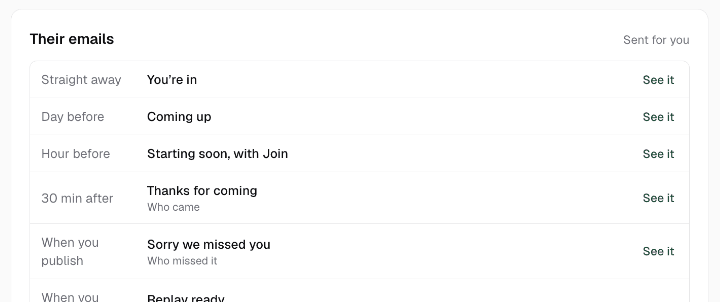
On the form, and on the event's screen, Their emails lists what will be sent. Click See it on any row to read the email exactly as people get it.
What goes out, and when
- You're in: straight away, when someone signs up or buys. It has their own link and the date.
- Coming up: the day before.
- Starting soon, with Join: about an hour before, with the button to join.
- A live now email: a few minutes after you go live, to everyone booked who is not in the room yet.
- Thanks for coming: 30 minutes after the call, to the people who came.
- Sorry we missed you: to the people who booked and did not come. For a recorded call it goes when you publish the recording and choose to email. For a call that was not recorded it goes 30 minutes after.
- A recording email: when you publish the recording and choose to email people.
Two more go only when something changes: a new time email if you move a call, and a cancelled email if you cancel one.
Each person gets their own link
Every email carries that person's own link. It opens the event on any device without signing in. When the room is open it takes them straight in, and once a recording is published it takes them to the recording.
Choose the emails after the call
Open After the call on the event. Email who came and who missed it switches the thanks and the missed it emails on or off for this event. Next step picks the button those emails carry: one of your products, or A link of your own with your own Button words.
Change the words, or switch one off
The words are set once for your whole school. Open Email, then Automatic emails, and look in the Live sessions group. Reminder: tomorrow, Reminder: starting soon, Live now, Thanks for coming and Sorry we missed you can each be switched off, and you can change their subject and button. See how to customise the emails Knola sends for you.
Invite the rest of your list
These emails go only to people with a seat. To invite everyone else, click Email your audience on the event's screen and send your list the link.
Does Knola send webinar reminders for me?
Yes. Everyone with a seat gets an email the day before and another about an hour before, with the button to join.
Can I turn off the reminder emails?
Yes. In Email, then Automatic emails, switch off Reminder: tomorrow or Reminder: starting soon. It applies to every call in your school.
Who do the emails come from?
They are sent in your school's name, and replies go to your school's reply address.