

How to end a live session and see how it went
End your live session for everyone, then read how it went: who came, how long they stayed, what they asked, what sold, and who to follow up.

 By Knola4 min read
A live session used to be gone the moment it ended. Here the end is where the useful part starts: the numbers, the questions and the recording.
End the call
Click Leave, the red button. Knola asks End the call for everyone? and gives three choices.
- End for everyone: everyone leaves, your team too, and the recording stops.
- Just leave: you step away and the call keeps running for the others.
- Stay: back to the room.
What your audience sees
Everyone gets a Thanks for coming screen that says where the recording will be. Signed-in students are also asked How was it?, with five stars and room for a comment.
Read how it went
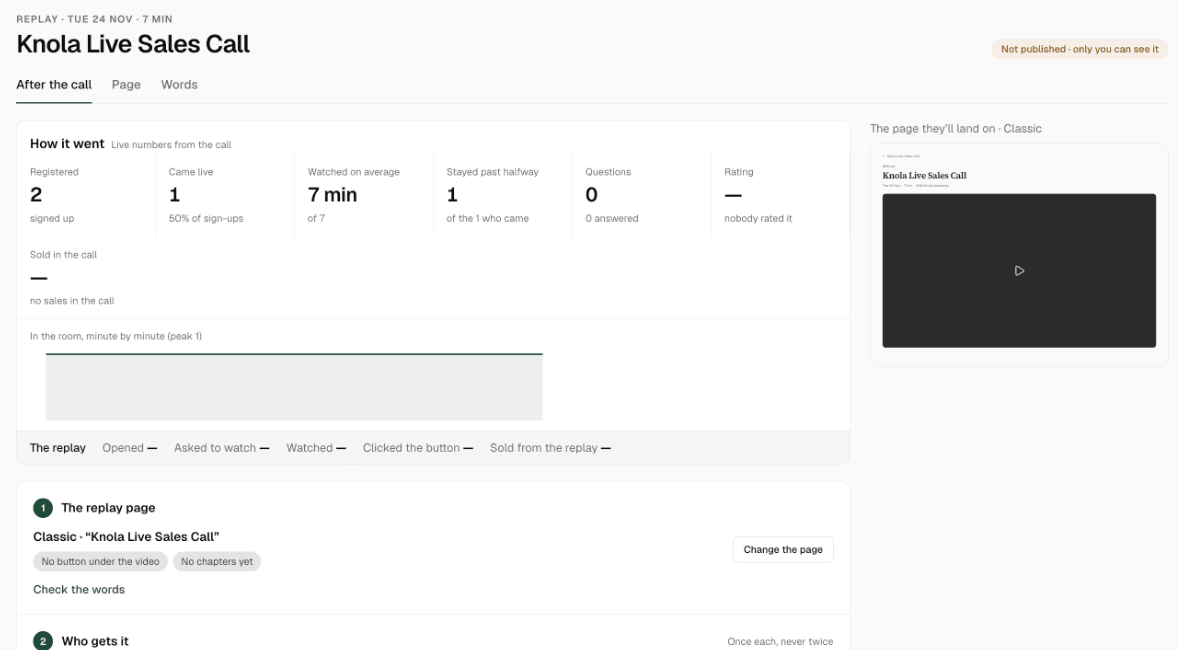
For an event, you land on a screen with three tabs: After the call, Page and Words. The first card, How it went, has the live numbers from the call.
- Registered: how many signed up.
- Came live: how many came, and the share of sign-ups.
- Watched on average: the minutes people stayed.
- Stayed past halfway: how many were still there after the middle.
- Questions: how many were asked, and how many were answered.
- Rating: the average of the stars people gave.
- Sold in the call: sales from an offer you showed.
You and your team are not counted as people who came.
Open the full report
The link under the numbers opens the call's full report. It adds a chart, In the room, of how many people were there minute by minute, with a mark where you asked a poll or showed an offer. Below it are the questions, with the ones still to answer first and a Copy button, then What people said and the poll results.
Follow up the people most likely to buy
Who's hot lists up to 20 people, with the reason for each: they went to the checkout, asked about the price, stayed to the end, asked a question, or bought from you before. Copy a note gives you a personal note to send to one of them. Write to them opens a draft email to the whole list. Nothing is sent until you send it.
Then decide what the recording does
The recording is being made while you read the numbers, and you get an email when it is ready to check. See how to publish a live recording.
Can I see who came to my webinar?
Yes. The event's People tab lists everyone with a seat and how many calls each came to, and the report shows how many came and how long they stayed.
Can I leave a call without ending it?
Yes. Choose Just leave and the call keeps running for your team and your audience.
Are the questions saved after the call?
Yes. Every question is in the call's report, with a Copy button for the ones still to answer.