

How to run a poll in a live session
Prepare polls before your live session, ask each one during the call, make a new one on the spot, and read the results afterwards.

 By Knola3 min read
A poll gets the whole room to take part, and tells you who is there and what they need. Write your polls before the call so that asking one takes a moment.
Prepare your polls
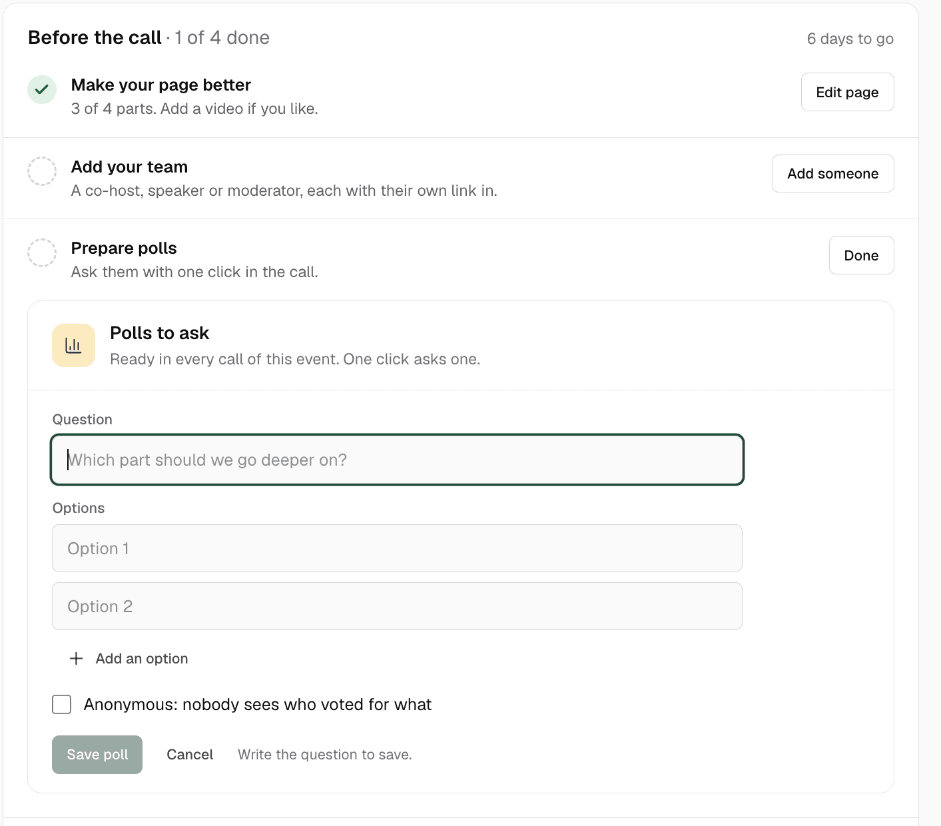
Open the event from Live. Under Before the call, find Prepare polls and click Add a poll. Type the Question, fill in the Options, and use Add an option for more. Tick Anonymous: nobody sees who voted for what if you want that, then click Save poll.
An event holds up to 10 polls, each with 2 to 6 options. They are ready in every call of the event, so a series has them in each call.
Ask a poll in the call
In the room, click Polls. Under Ask a poll are the polls you prepared. Click Ask now on one and it goes to everyone.
Make one on the spot
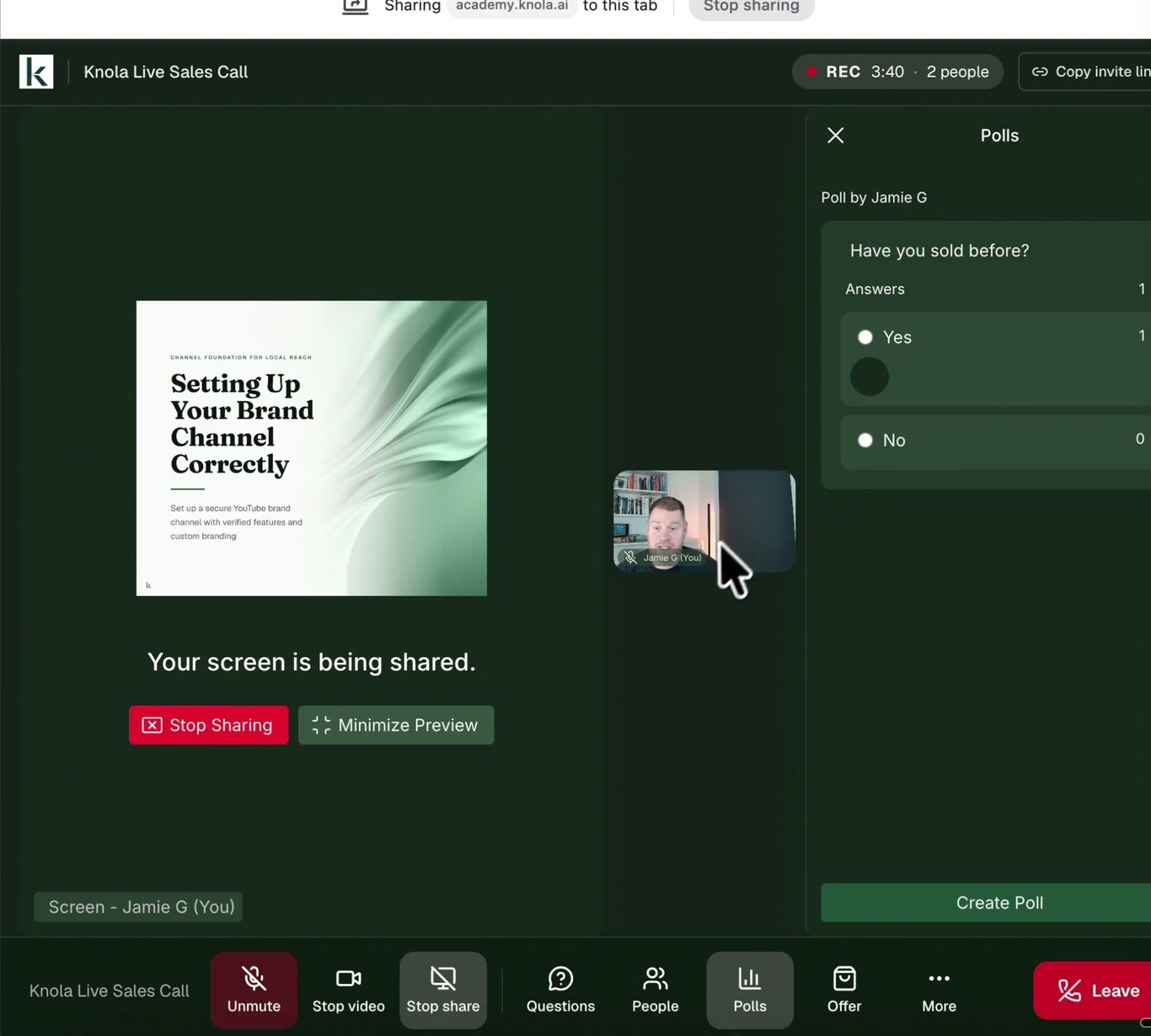
Click Write a new one or see results to open the Polls panel, then Create Poll. Write the question and the options there and send it.
Watch the votes come in
People vote in their own Polls panel. You see each vote arrive in yours, with the count beside every option. Attendees can vote, and only you and your team can ask a poll.
Read the results afterwards
After the call, the call's details list each poll under Polls, with how many people voted and the count and share for every option. Knola keeps the totals, never who voted for what.
Can I prepare polls before my webinar?
Yes. Add up to 10 polls to the event under Before the call, then ask each one in the call with Ask now.
Can attendees create their own polls?
No. Attendees vote. The host, a co-host or a moderator asks the polls.
Can I see who voted for what?
No. The results after the call are totals for each option.