

How to run live calls for a course
Add office hours or a live Q&A to a course: schedule the calls, let students register, and publish each recording as a new lesson.

 By Knola4 min read
A call for your students belongs to a course. Only people in the course get in, they join from the course page, and the recording becomes a lesson.
Open the course's live sessions
Open the course, go to its Features tab and find the Live sessions card. You can also start from Live: click Create, then Calls in a course, and pick the course.
Schedule a session
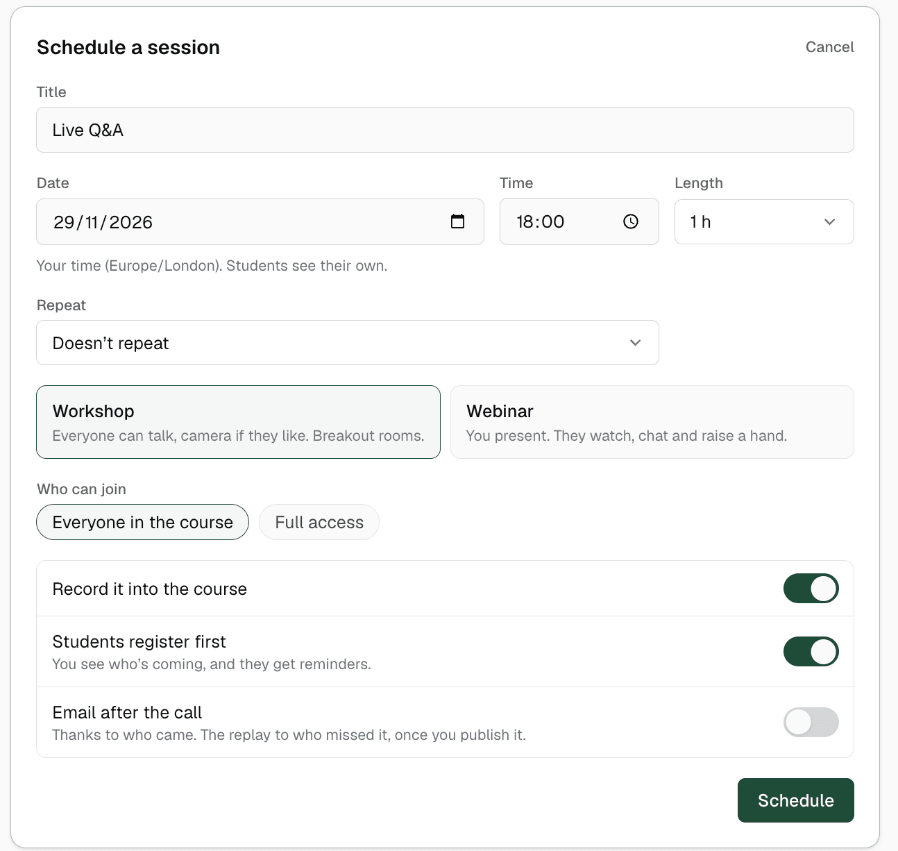
Click Schedule a session. Give it a Title, a Date, a Time and a Length. Students see the time in their own time zone.
- Repeat: Doesn't repeat, Every week or Every 2 weeks, then How many calls. Students register once for all of them.
- Kind of session: Workshop, where everyone can talk, or Webinar, where you present.
- Who can join: shown when the course has access tiers. Choose Everyone in the course or one tier.
- Record it into the course: on unless you switch it off.
- Students register first: on, you see who is coming and they get reminders. Off, anyone in the course can drop in.
- Email after the call: thanks to the people who came, and the recording to the people who missed it.
Click Schedule. The call is on the course page at once.
Start the call
Each call under Upcoming has a Start button, and Link copies its address for students. For a call this minute, Go live now makes one and opens the room.
Come into the room within 15 minutes of the start and the call is live. Earlier than that is a rehearsal. See how to go live for the room itself.
What students see
The course page shows a Next live session card with the time and a Register button, then Add to calendar. The Join button opens 10 minutes before the start. Students who registered get an email the day before and another an hour before.
Publish the recording as a lesson
When a call for everyone in the course ends, its recording arrives as a draft lesson, in a module made for your recorded sessions. Under Past, click Watch to check it, then Publish only or Publish and email.
Can I run office hours for my course in Knola?
Yes. Schedule a session on the course's Live sessions page, and set it to repeat Every week or Every 2 weeks if you want.
Who can join a call in a course?
Only students in the course, or in the tier you choose. Someone who is not enrolled is sent back to the course page.
Where does the recording of a course call go?
It becomes a draft lesson in the course. Students see it when you publish it.