
Messages, chat, reactions and raised hands
Send a note, a link or a file to everyone in your live session, open or close the chat, read the reactions, and bring someone up to speak.

 By Knola4 min read
A message to the room is said once and stays there, so people who join late see it too. Chat, reactions and raised hands are how the room answers back.
Send a message to everyone
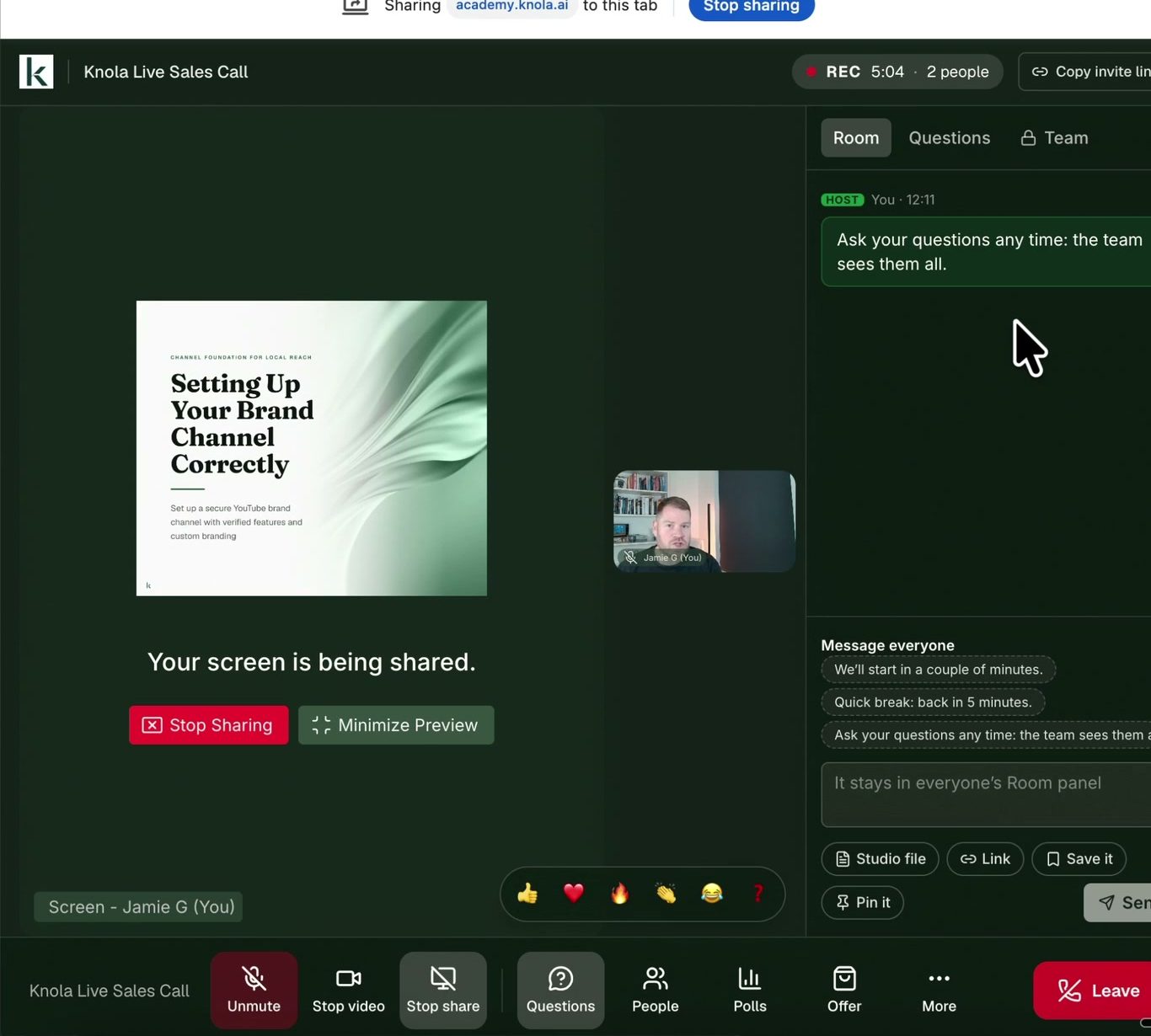
In the room, open the Room tab. Under Message everyone, click one of the ready lines, such as "We'll start in a couple of minutes." or "Quick break: back in 5 minutes.", or type your own, and click Send.
Everyone gets a small notice, and the message stays in their Room panel for the whole call. Only you and your team can write here.
Add a link or a file
- Link adds a web address and a name for it, such as a workbook or a booking page.
- Studio file attaches a document you made in the Studio, as a PDF.
- Pin it keeps the message at the top of everyone's panel. One message is pinned at a time.
- Save it keeps the message to use again in your next calls.
See what the Studio makes for the documents you can hand out.
Open or close the chat
Open More and choose the chat row. Open chat lets everyone chat and see each other's questions, and a Chat button appears in the bar. Private questions removes the chat: people ask you and your team, and do not see each other's messages.
Read the reactions
Everyone has six reactions: a thumbs up, a heart, a fire, applause, a laugh and a question mark. As host you see how the room has reacted over the last minute. When several people send the question mark, Knola asks whether to slow down.
Bring someone up to speak
In a webinar, attendees cannot speak until you let them. They click Raise hand, and you bring them up from People. When they have finished, they click Leave stage.
In a workshop, people join muted and unmute themselves. More has Mute everyone for when it gets noisy, Let attendees share their screen so that one of them can present, and Breakout rooms to split the group.
Do people who join late see my messages?
Yes. A message to the room stays in everyone's Room panel for the whole call, and a pinned one stays at the top.
Can I turn off the chat in a webinar?
Yes. Choose Private questions and there is no chat between attendees. They can still ask you and your team.
Can an attendee speak in a webinar?
Yes, when you bring them up. They raise a hand, and you let them on from People.