

How to show an offer in a live session
Put one of your products on every screen in your live session, with a price, a countdown and a Buy button, and see what it sold.

 By Knola3 min read
The best moment to sell your course is when people have just learned from you. An offer puts the product and a Buy button in front of everyone in the room, and you keep teaching.
Have something on sale first
An offer shows a product that already has a price in your school. If you have none, the picker says "Nothing on sale yet. Add a product with a price first." See how to build an offer.
Show the offer
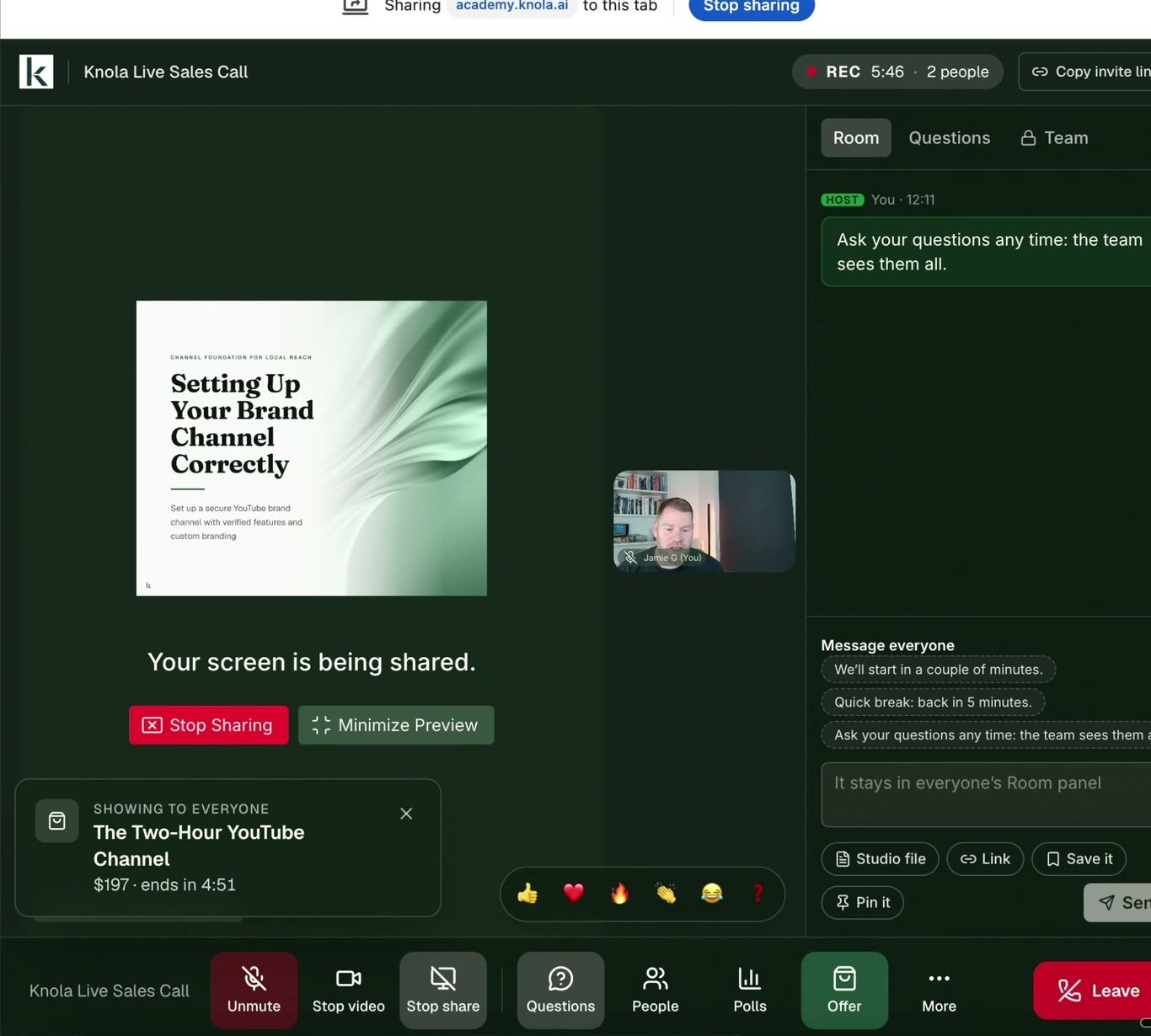
In the room, click Offer. Under Show an offer, choose the Product, then a Countdown: No countdown, or Ends in 5 minutes, 10, 15 or 30. Click Show to everyone.
A card on your screen says Showing to everyone, with the price and the time left. The host and co-hosts can show offers.
What your audience sees
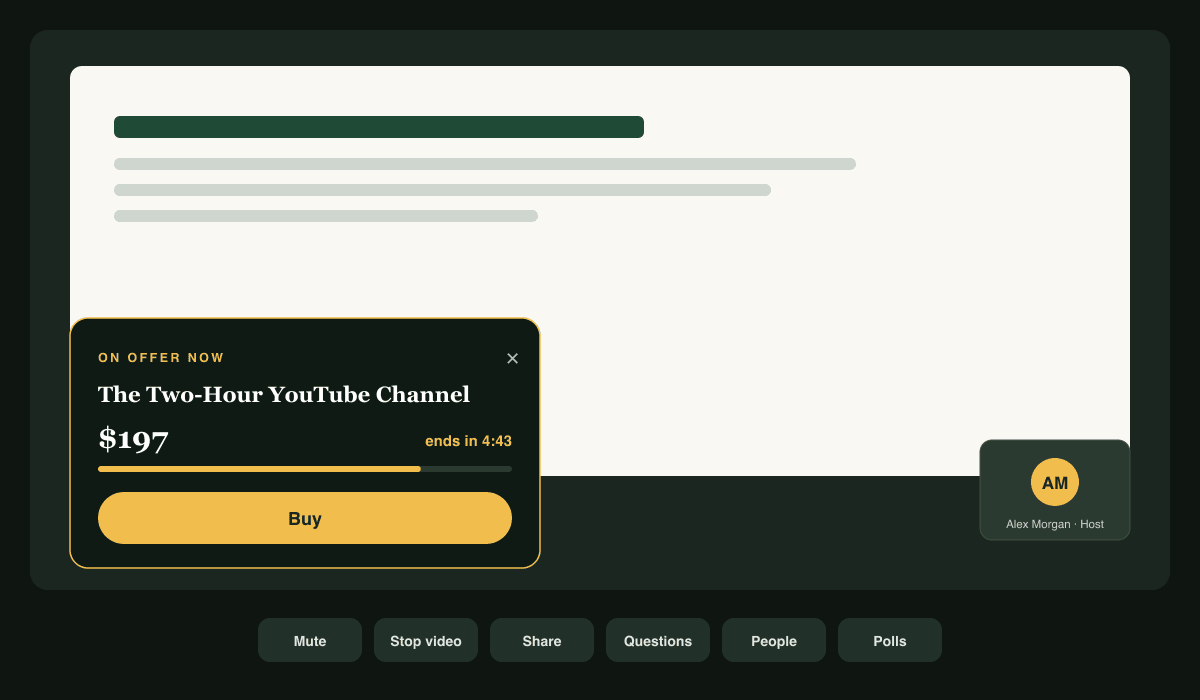
Everyone gets a card headed On offer now, with the product, the price, the time left and a Buy button. Buying opens your checkout in a new tab, and the call keeps going for them. They can close the card for themselves.
Change it or hide it
Click Offer again. Show this instead swaps to another product, and Hide takes the card away. One offer shows at a time. With a countdown, the card goes when the time runs out.
See what it sold
After the call, Sold in the call shows how many people bought and the total. The call's report also shows how many went to the checkout, and marks the moment the offer went up on the chart of who was in the room. See how to end a live session and see how it went.
Can I sell my course during a webinar?
Yes. Click Offer, choose the product and click Show to everyone. Everyone in the room sees it with a Buy button.
Do people leave the call to buy?
No. The checkout opens in a new tab and the call keeps going in the first one.
Can I show a special price for the session?
The offer shows a product at a price it already has in your school. The picker lists each one with its price, so set up the price you want before the call.