

How to go live
Open your live room, get people in, set what they see while they wait, and go live when you are ready, with the room's controls explained.

 By Knola5 min read
You can be in the room well before your audience. You check your camera, your slides and your team, and people come in when you say so.
Open the room
Open the event from Live. The card on the right, The call, has the button: Start webinar for a webinar, Start session for a workshop. The Next up card on the Live screen has the same button. You can start it any time before the call.
Check your camera and get people in
First you see yourself, to check your camera and microphone. Beside that is Get people in. Share the link has the address to send, with Copy. For a free event, Email an invite writes to the students of the courses you tick.
Your camera starts on, and everyone joins muted.
Set what people see while they wait
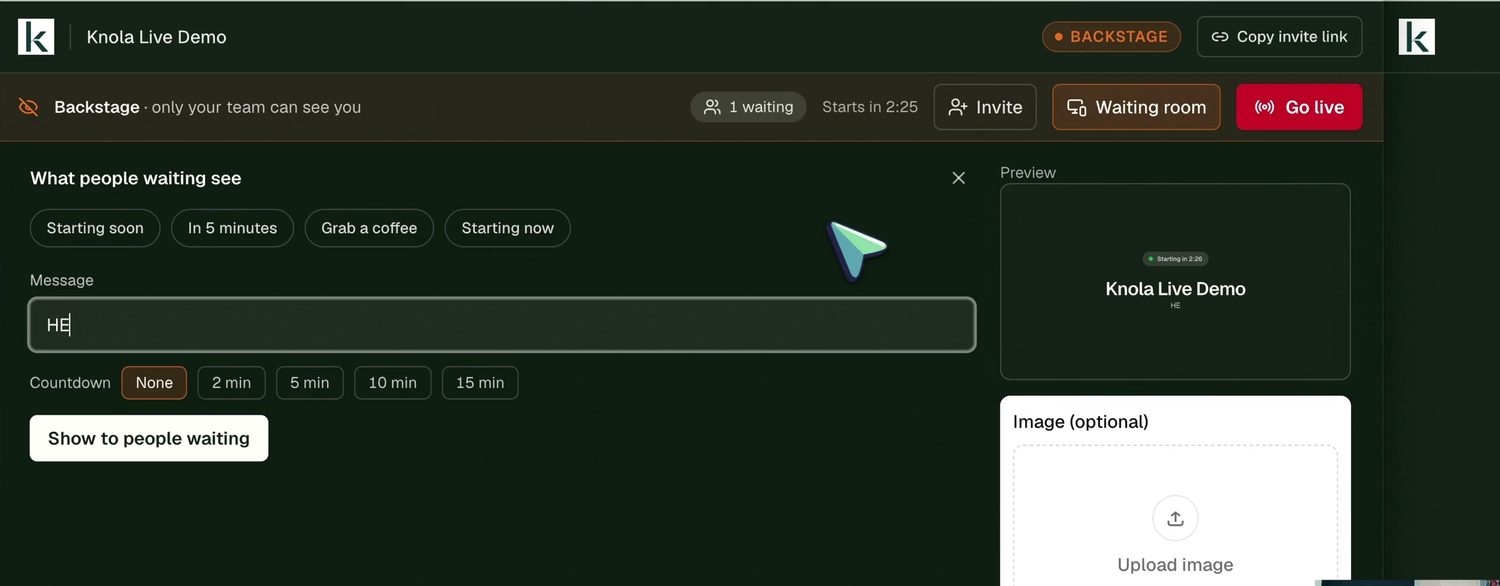
When the top of the room says BACKSTAGE, only your team can see and hear you. People who arrive wait on a screen with the title and a count down to the start. The bar shows how many are waiting.
Click Waiting room to change that screen. Under What people waiting see, pick a ready line (Starting soon, In 5 minutes, Grab a coffee, Starting now) or type your own Message. Add a Countdown and an Image (optional), such as a slide or your logo, then click Show to people waiting.
Go live
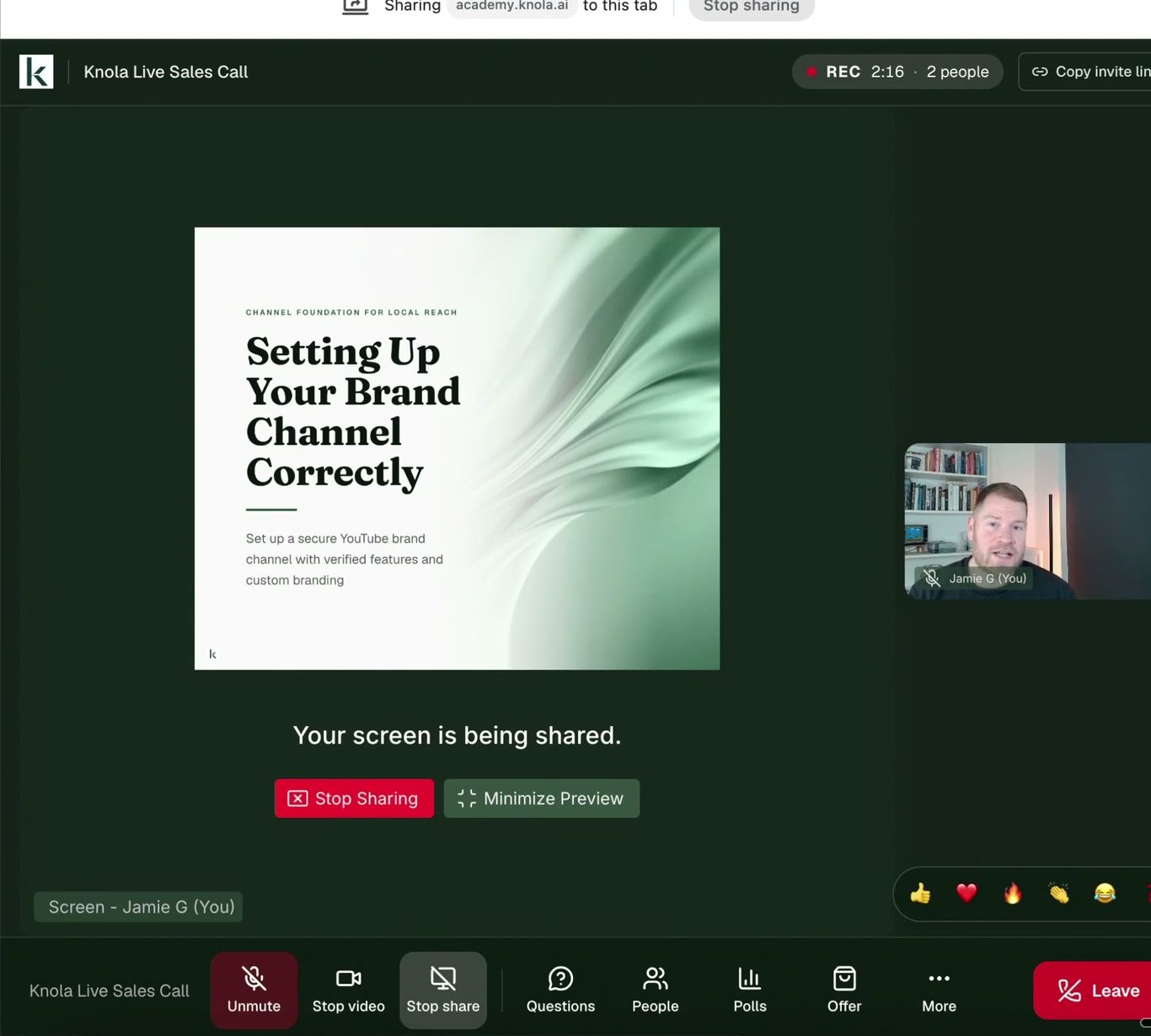
Click Go live. A short count, 3, 2, 1, gives you a moment, and Not yet stops it. Then everyone waiting comes straight in. If the call is recorded, the recording starts here, so your first words are in it. The top of the room now shows REC and a clock.
Know the controls
The bar along the bottom has, from the left: Mute, Stop video, Share, Questions, People, Polls, Offer and More, then Leave in red. More holds the rest, including Invite to the team, Mute everyone, Breakout rooms and Full screen.
There is no record button. A call set to record is recorded from the moment you go live until it ends.
Share your screen
Click Share and choose a tab, a window or your whole screen. Your audience sees it at once, with your camera beside it. Stop share ends it. What you share is in the recording.
No time to plan? Go live now
On the Live screen, click Go live now and choose Webinar or Workshop. Knola makes a free event that starts this minute, opens the room, and gives you the link to share. It is recorded.
Can people see me before I go live?
Not while the room says BACKSTAGE. Only your team sees you. Everyone else waits on the screen you set until you click Go live.
How early can people join a live session?
From 10 minutes before the start. If you are backstage sooner than that, people who arrive wait until you go live.
Do I have to press record?
No. A call set to record starts recording when you go live and stops when the call ends.