
How to take questions in a live session
Take questions in a live session without scrolling a chat: choose private or open questions, answer live or in writing, and share the work.

 By Knola4 min read
Questions have their own place in the room, apart from the chat, so none gets lost while you teach. Every question is kept for you after the call.
Choose private or open questions
When you set up the event, In the room has one switch, Let them see each other. Off, the event has Private questions: people message you and your team, not each other. On, it has Open chat and questions: everyone chats and sees each other's questions.
You can change it during the call. Open More, choose the chat row, and pick Private questions or Open chat. It applies to everyone at once.
How people ask
With private questions, people type in Ask the host a question in their Room tab and click Ask. Only your team sees it. Hide my name sends it without their name.
With open questions, they ask in the Questions tab, and Ask anonymously leaves their name off. Everyone can vote a question up, and Top and New change the order. A question can be up to 300 characters.
Open the questions
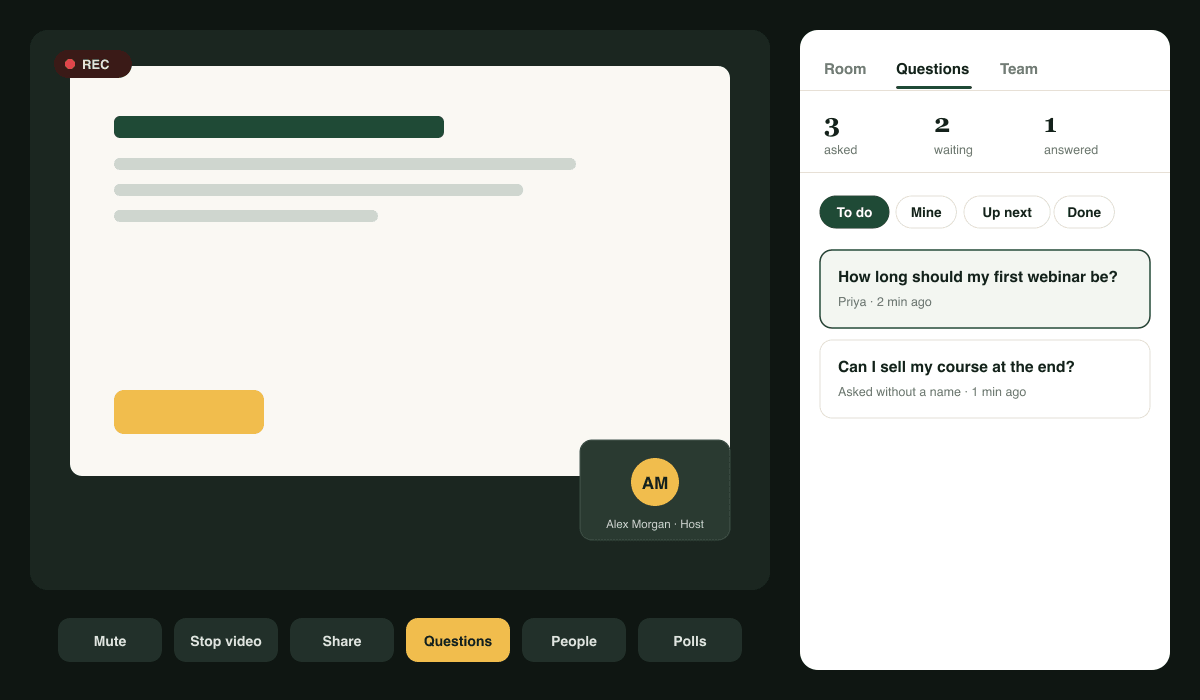
Click Questions in the bar at the bottom. The tab shows how many were asked, how many are waiting and how many are answered. Four filters sort them: To do, Mine, Up next and Done.
Answer a question
- Answer live puts the question on everyone's screen while you answer it out loud. Click Done when you have finished. One question is on screen at a time.
- Reply answers in writing. With private questions only the person who asked sees your reply, and Share with everyone shows the question and the reply to the room.
- Mark as answered clears it without a reply.
- Hide from the room takes a question out of sight. The host, a co-host or a moderator can do this.
Find the questions after the call
Every question is in the call's report, with the ones still to answer first and a Copy button to take them into an email or a lesson. See how to end a live session and see how it went.
Can people ask a question without their name?
Yes. Hide my name, or Ask anonymously with open questions, sends the question with no name on it.
Do attendees see each other's questions?
Only if you choose open questions. With private questions each person sees their own, your replies to them, and anything you share with everyone.
Can a moderator answer questions for me?
Yes. Anyone on your team can reply in writing, and a moderator can also hide a question from the room.