

How to run an evergreen webinar
Take a session you already ran and let it show again on a schedule, with your offers appearing at the minute you choose in the recording.

 By Knola4 min read
An evergreen webinar is a recorded call that shows like a webinar: people sign up, it starts at a set time, and your offer appears at the right moment. It is always labelled as recorded.
Pick the recording
Click Live, then Create, then Evergreen webinar, and choose the Recorded call. Or start from a recording you like: Make it evergreen is on its card. Any recorded call in your school can be used, except a coaching session.
Write the sign-up page
Under The sign-up page, give it a Title, One line on what they'll get and, if you like, more about it, a host name and a Cover image. Signing up is free: people give an email and get their own private link.
Choose when it shows
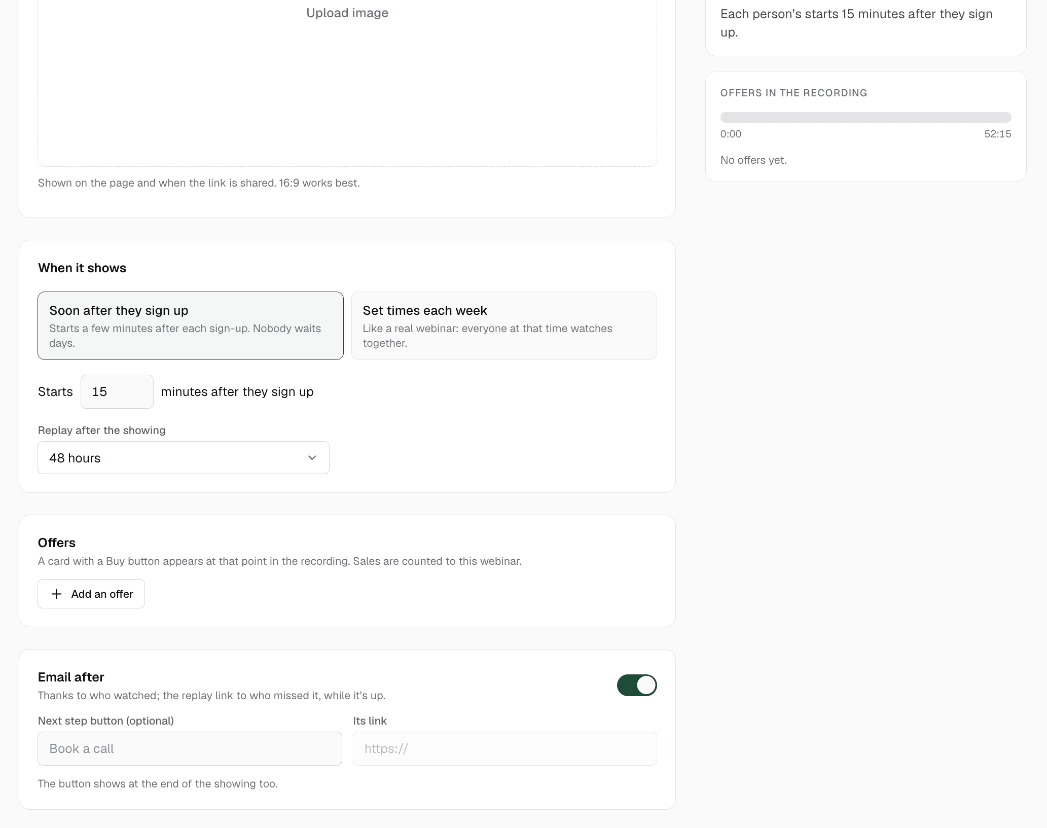
- Soon after they sign up: each person's showing starts a few minutes after they sign up. You set how many minutes, from 1 to 120.
- Set times each week: like a real webinar, everyone at that time watches together. Add a time adds another day and time.
Then choose how long people can watch it again after their showing: not at all, 24 hours, 48 hours, 3 days, a week or always.
Add your offers
Under Offers, click Add an offer. Sell picks the price to show, Appears at is the point in the recording (32:00, for example), and For (minutes) is how long the card stays. Left empty, it stays to the end. A webinar holds up to 10 offers, and sales are counted to this webinar.
Set the email after
Email after sends thanks to the people who watched, and a link to watch again to the people who missed it, while it is still up. Next step button (optional) adds a button to those emails and to the end of the showing.
What viewers see
A viewer signs up, sees a count down to their showing, and joins where everyone is. During the showing they cannot skip ahead. Your offer appears as a card with a Buy button that opens your checkout in a new tab. The page says the call is recorded, and there is no chat and no count of who is watching.
Does an evergreen webinar pretend to be live?
No. Every screen says it is recorded. It shows at a set time, like a webinar, with your offers at the moments you choose.
Can I charge for an evergreen webinar?
No. Signing up is free and takes an email. The webinar earns through the offers you place in it.
Do I need to record something new?
No. Choose any recorded call in your school, except a coaching session.