

How to create and schedule a live session
Set up a webinar, a workshop or a series of calls in Knola Live: give it a title and a time, choose how the room works, and open sign-ups.

 By Knola5 min read
A live session needs a title and a time. Knola fills in the rest, and you can change any of it before the call. This guide makes a free webinar; a paid session is the same form with a price, covered in how to charge for a live session.
Pick what to run
Click Live in the sidebar, then Create. In the An event card, choose Free webinar or Paid session. For several calls sold together, choose the tile that says Several calls on one ticket.
Picked the wrong one? Change, beside the label at the top of the form, switches between the three, and what you have typed stays.
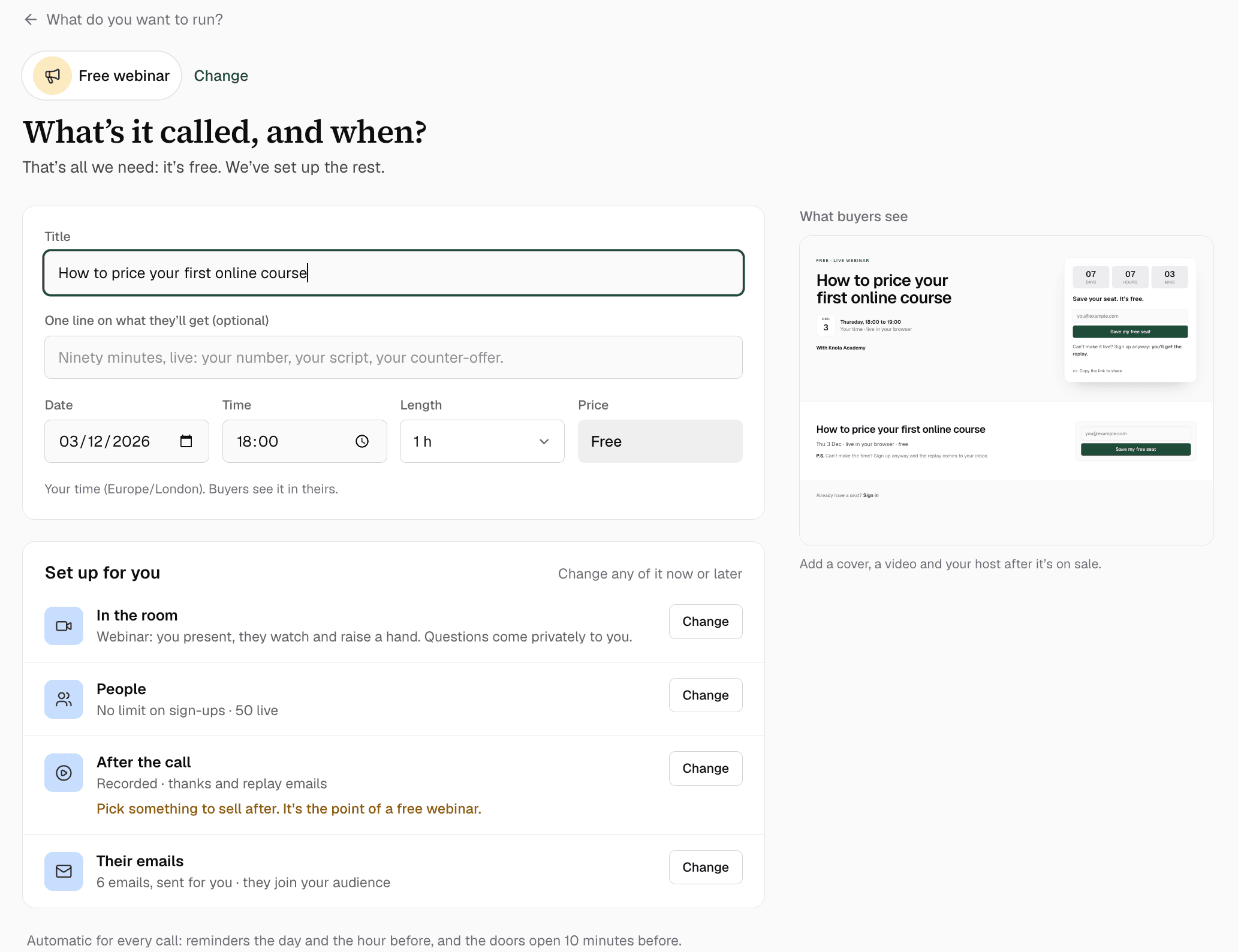
Give it a title and a time
Fill in Title and, if you like, One line on what they'll get (optional). Then set Date, Time and Length. Length runs from 30 minutes to 2 hours.
The time is yours. People who sign up see it in their own time zone.
For a series, set the calls
A series starts with four calls, a week apart, under Calls. Name each call and change any date or time: the calls do not have to be a week apart. Add a call a week later adds another, up to 20. Each call sets the length for all of them, and one price covers every call.
Choose how the room works
Under Set up for you are four rows, each with a one line summary and a Change button.
- In the room: the format, Webinar or Workshop. The switch Let them see each other opens the chat and the questions to everyone; off, people message you and your team in private. In a workshop, Let attendees share their screen lets anyone share.
- People: how many can sign up or buy.
- After the call: Record it, Email who came and who missed it, and Next step, the button in your emails after the call.
- Their emails: the emails Knola sends for you, each with See it to read it first.
Open sign-ups
Click Open sign-ups for a free webinar, or Put it on sale for a paid one. The page is published at once. You get Your link with Copy link, Email your audience to write to your list, and View page to see it.
Go to the event opens the event's own screen, where you prepare the call and start it.
Change it later
On the event's screen, Settings holds the same rows, each with Change. If you move a call when people are booked, Knola asks first, then emails them the new time and sends their reminders again for it.
One thing is fixed: a single call cannot become a series, or a series a single call. To stop or cancel a session, see how to cancel or change a live session.
How long can a live session be in Knola?
You choose 30 minutes, 45 minutes, 1 hour, 1 hour 30 or 2 hours when you set it up. See limits and attendee hours for the rest.
Can I run a webinar series with one sign-up?
Yes. A series is several calls on one ticket: up to 20 calls, one price, and each buyer gets every call.
Can I change the date after people have signed up?
Yes. Change the date in Settings on the event. Everyone with a seat gets an email with the new time, and their reminders go again.